> ## Documentation Index
> Fetch the complete documentation index at: https://docs.heffl.com/llms.txt
> Use this file to discover all available pages before exploring further.
# Wiki: internal notes and documents
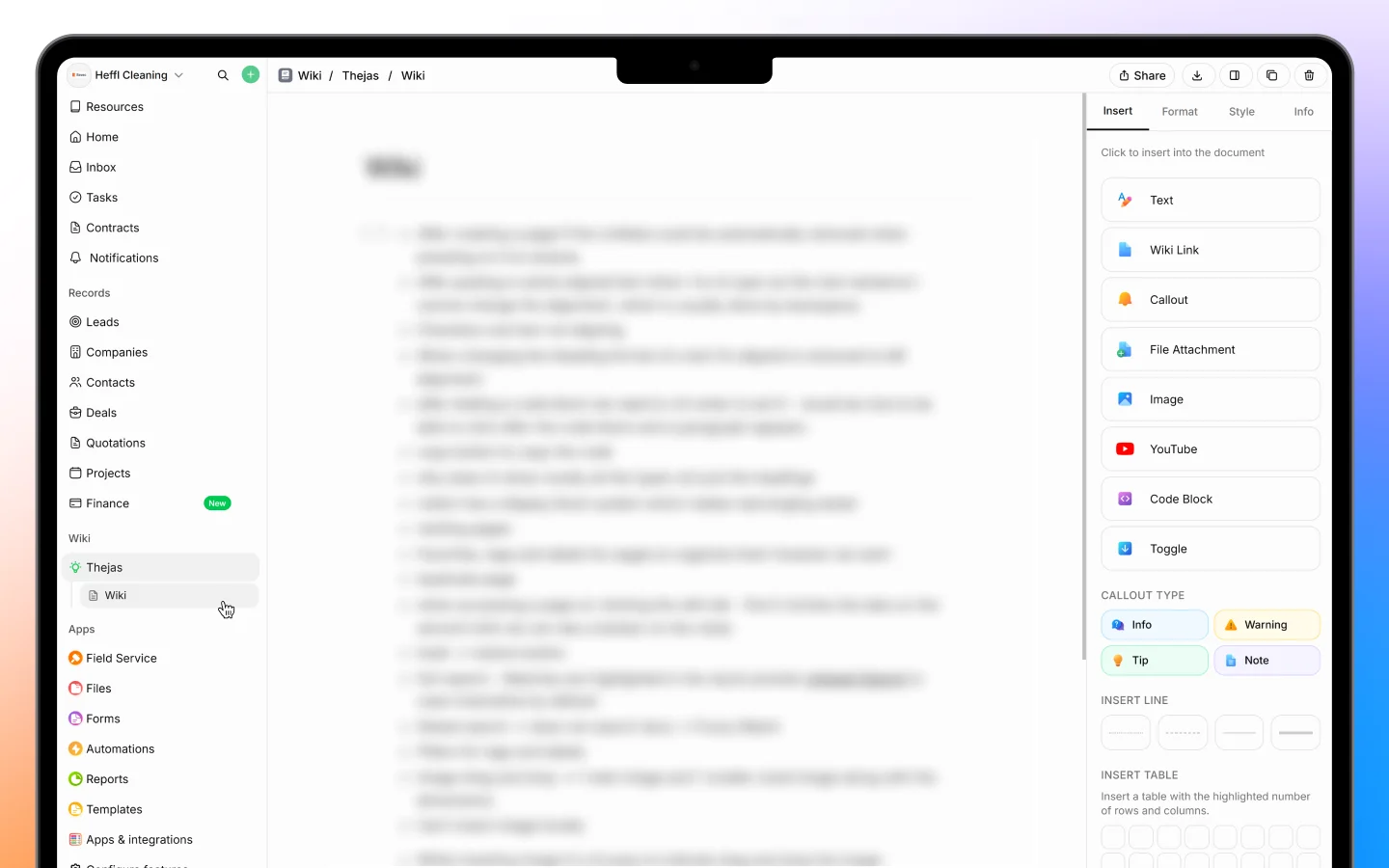
The Wiki is your workspace's built-in note-taking and document space. Use it to write and store internal documents, meeting notes, guides, and anything your team needs to reference. It works like a lightweight document editor organized into folders. You will find the **Wiki** section in the sidebar.
 ***
## How the Wiki is organized
The Wiki uses two building blocks:
* **Folders** group related documents together. Folders can be **nested**, so you can put folders inside folders to build a structure (for example, a team folder containing sub-folders per topic).
* **Documents** are the individual pages you write inside a folder.
Folders appear under the Wiki heading in the sidebar, with their documents and sub-folders nested beneath them.
***
## Creating a folder
1. In the sidebar, click the **+** next to Wiki (or next to an existing folder to nest one inside it)
2. In the **Create new folder** panel, enter a **Title**
3. Optionally add a **Description** to note what the folder is for
4. Choose an **icon** and **color** under Appearance to make the folder easy to spot
5. Set the **Visibility**:
* **Open** means everyone on your team can view and edit
* **Private** means only invited people can access it
6. Click **Create folder**
***
## Creating a document
1. Open a folder
2. Click **+ Document** in the top right
3. Give the document a title
4. Start writing in the editor
Documents save automatically as you type. You will see a "Saved" note when your changes are stored. Each folder lists its documents with the author and the date last updated.
***
## Using the editor
You can add content blocks two ways.
**The Insert panel** The panel on the right lists every block. Click one to insert it: Text, Wiki Link, Callout, File Attachment, Image, YouTube, Code Block, and Toggle, plus dividers (Insert Line) and tables (Insert Table).
**The slash command** Type `/` anywhere in the document to open an inline insert menu, then pick a block without leaving the keyboard. The menu includes Text, Heading 1, Heading 2, Heading 3, Bullet List, Numbered List, Task List, Embed, YouTube, Callout, Toggle, and Table. This is the quickest way to build a document as you write.
**Callout types** Callouts come in four styles for highlighting different notes: Info, Warning, Tip, and Note.
The tabs at the top right, **Insert**, **Format**, **Style**, and **Info**, switch between adding content, formatting text, styling the page, and viewing document details.
***
## Linking between documents
Use the **Wiki Link** block to link one Wiki document to another. This lets you connect related notes, for example linking a meeting note to the guide it references. Wiki Links point to other Wiki documents, so the Wiki works as a connected internal knowledge base rather than linking out to records like leads or projects.
***
## Sharing and visibility
Click **Share** in the top right of any document to control who can see it. Sharing follows the folder's visibility setting:
* A document in an **Open** folder can be viewed and edited by everyone on your team
* A document in a **Private** folder is limited to invited people
Set a folder's visibility when you create it, and choose Private for anything sensitive so it stays restricted to the right people.
***
## When to use the Wiki
The Wiki is best for:
* Internal documentation and team guides
* Meeting notes and follow-up action lists
* Standard operating procedures
* Anything your team needs to find and edit later
For documents you send to clients, such as quotes and proposals, use the document editor in [Quotations](https://docs.heffl.com/creating-and-sending-quotations) instead. The Wiki is meant for internal knowledge.
***
## What to do next
1. Create a folder for each major topic or team, nesting sub-folders where helpful
2. Set folder visibility to Open or Private depending on sensitivity
3. Add documents and connect related pages with Wiki Links
***
## How the Wiki is organized
The Wiki uses two building blocks:
* **Folders** group related documents together. Folders can be **nested**, so you can put folders inside folders to build a structure (for example, a team folder containing sub-folders per topic).
* **Documents** are the individual pages you write inside a folder.
Folders appear under the Wiki heading in the sidebar, with their documents and sub-folders nested beneath them.
***
## Creating a folder
1. In the sidebar, click the **+** next to Wiki (or next to an existing folder to nest one inside it)
2. In the **Create new folder** panel, enter a **Title**
3. Optionally add a **Description** to note what the folder is for
4. Choose an **icon** and **color** under Appearance to make the folder easy to spot
5. Set the **Visibility**:
* **Open** means everyone on your team can view and edit
* **Private** means only invited people can access it
6. Click **Create folder**
***
## Creating a document
1. Open a folder
2. Click **+ Document** in the top right
3. Give the document a title
4. Start writing in the editor
Documents save automatically as you type. You will see a "Saved" note when your changes are stored. Each folder lists its documents with the author and the date last updated.
***
## Using the editor
You can add content blocks two ways.
**The Insert panel** The panel on the right lists every block. Click one to insert it: Text, Wiki Link, Callout, File Attachment, Image, YouTube, Code Block, and Toggle, plus dividers (Insert Line) and tables (Insert Table).
**The slash command** Type `/` anywhere in the document to open an inline insert menu, then pick a block without leaving the keyboard. The menu includes Text, Heading 1, Heading 2, Heading 3, Bullet List, Numbered List, Task List, Embed, YouTube, Callout, Toggle, and Table. This is the quickest way to build a document as you write.
**Callout types** Callouts come in four styles for highlighting different notes: Info, Warning, Tip, and Note.
The tabs at the top right, **Insert**, **Format**, **Style**, and **Info**, switch between adding content, formatting text, styling the page, and viewing document details.
***
## Linking between documents
Use the **Wiki Link** block to link one Wiki document to another. This lets you connect related notes, for example linking a meeting note to the guide it references. Wiki Links point to other Wiki documents, so the Wiki works as a connected internal knowledge base rather than linking out to records like leads or projects.
***
## Sharing and visibility
Click **Share** in the top right of any document to control who can see it. Sharing follows the folder's visibility setting:
* A document in an **Open** folder can be viewed and edited by everyone on your team
* A document in a **Private** folder is limited to invited people
Set a folder's visibility when you create it, and choose Private for anything sensitive so it stays restricted to the right people.
***
## When to use the Wiki
The Wiki is best for:
* Internal documentation and team guides
* Meeting notes and follow-up action lists
* Standard operating procedures
* Anything your team needs to find and edit later
For documents you send to clients, such as quotes and proposals, use the document editor in [Quotations](https://docs.heffl.com/creating-and-sending-quotations) instead. The Wiki is meant for internal knowledge.
***
## What to do next
1. Create a folder for each major topic or team, nesting sub-folders where helpful
2. Set folder visibility to Open or Private depending on sensitivity
3. Add documents and connect related pages with Wiki Links