> ## Documentation Index
> Fetch the complete documentation index at: https://docs.heffl.com/llms.txt
> Use this file to discover all available pages before exploring further.
# Notification settings
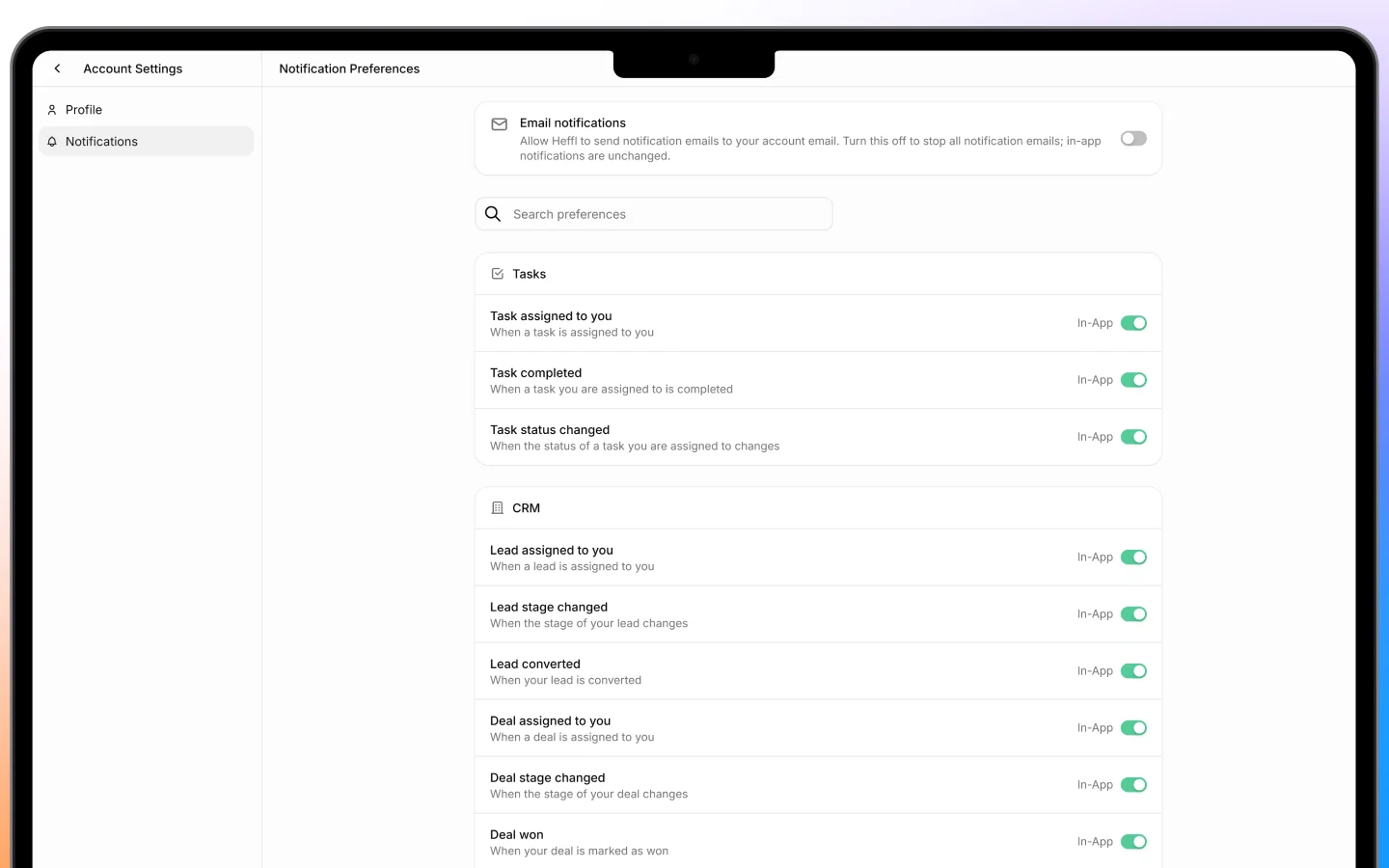
Notification settings control what you are alerted about and how those alerts reach you. Tuning them means you hear about what matters without being overwhelmed by noise. You will find these under **Settings > Notifications**, in the **Personal** group, so they apply to you alone.
***
## Where notifications appear
Heffl can notify you in a few places:
* **In-app**, through the **Notifications** item in the main sidebar, where alerts collect as you work
* **Email**, sent to your account email
* **Other channels**, such as Zoho Cliq, if connected as an integration. See [Integrations and connected apps](https://docs.heffl.com/integrations-and-connected-apps).
The Notifications settings screen is where you choose which events trigger an alert and through which of these channels.
 ***
## What you can be notified about
Notifications are tied to activity across your records and work, such as:
* A record or task being **assigned to you**
* A **task or follow-up** becoming due
* Updates on **deals, quotations, or invoices** you are involved in
* **Mentions or comments** directed at you
* **Field service** schedule changes
* System events relevant to your role
Turn on the events you want to stay on top of, and turn off the ones that are not useful to you.
***
## Choosing your channels
For each type of notification, you can usually choose how you receive it, in-app, by email, or both. A practical approach:
* Keep **in-app** on for most things, since it is low-friction
* Reserve **email** for items you must not miss, such as assignments and due follow-ups
* Use a connected channel like **Zoho Cliq** if your team lives in that tool
***
## Managing notification volume
If you are getting too many alerts, reduce the noise by turning off notifications for events you do not act on, and keeping only the ones that need your attention. If you are missing things, do the opposite, switch on alerts for assignments and due dates so nothing slips.
Because these are personal settings, your choices affect only your own notifications, not your teammates'.
***
## Staying on top of follow-ups
Notifications work hand in hand with the **next activity dates** you set on leads, deals, and tasks. When a follow-up comes due, a notification surfaces it, so the reminders you set actually reach you. See [Logging activities, notes, and follow-ups](https://docs.heffl.com/logging-activities-notes-and-follow-ups).
***
## What to do next
1. Review your [account settings](https://docs.heffl.com/account-settings) and profile
2. Connect a channel like [Zoho Cliq](https://heffl.com/) if you want alerts there
3. Set [next activity dates](https://heffl.com/) so follow-up notifications reach you
***
## What you can be notified about
Notifications are tied to activity across your records and work, such as:
* A record or task being **assigned to you**
* A **task or follow-up** becoming due
* Updates on **deals, quotations, or invoices** you are involved in
* **Mentions or comments** directed at you
* **Field service** schedule changes
* System events relevant to your role
Turn on the events you want to stay on top of, and turn off the ones that are not useful to you.
***
## Choosing your channels
For each type of notification, you can usually choose how you receive it, in-app, by email, or both. A practical approach:
* Keep **in-app** on for most things, since it is low-friction
* Reserve **email** for items you must not miss, such as assignments and due follow-ups
* Use a connected channel like **Zoho Cliq** if your team lives in that tool
***
## Managing notification volume
If you are getting too many alerts, reduce the noise by turning off notifications for events you do not act on, and keeping only the ones that need your attention. If you are missing things, do the opposite, switch on alerts for assignments and due dates so nothing slips.
Because these are personal settings, your choices affect only your own notifications, not your teammates'.
***
## Staying on top of follow-ups
Notifications work hand in hand with the **next activity dates** you set on leads, deals, and tasks. When a follow-up comes due, a notification surfaces it, so the reminders you set actually reach you. See [Logging activities, notes, and follow-ups](https://docs.heffl.com/logging-activities-notes-and-follow-ups).
***
## What to do next
1. Review your [account settings](https://docs.heffl.com/account-settings) and profile
2. Connect a channel like [Zoho Cliq](https://heffl.com/) if you want alerts there
3. Set [next activity dates](https://heffl.com/) so follow-up notifications reach you