> ## Documentation Index
> Fetch the complete documentation index at: https://docs.heffl.com/llms.txt
> Use this file to discover all available pages before exploring further.
# Creating an automation
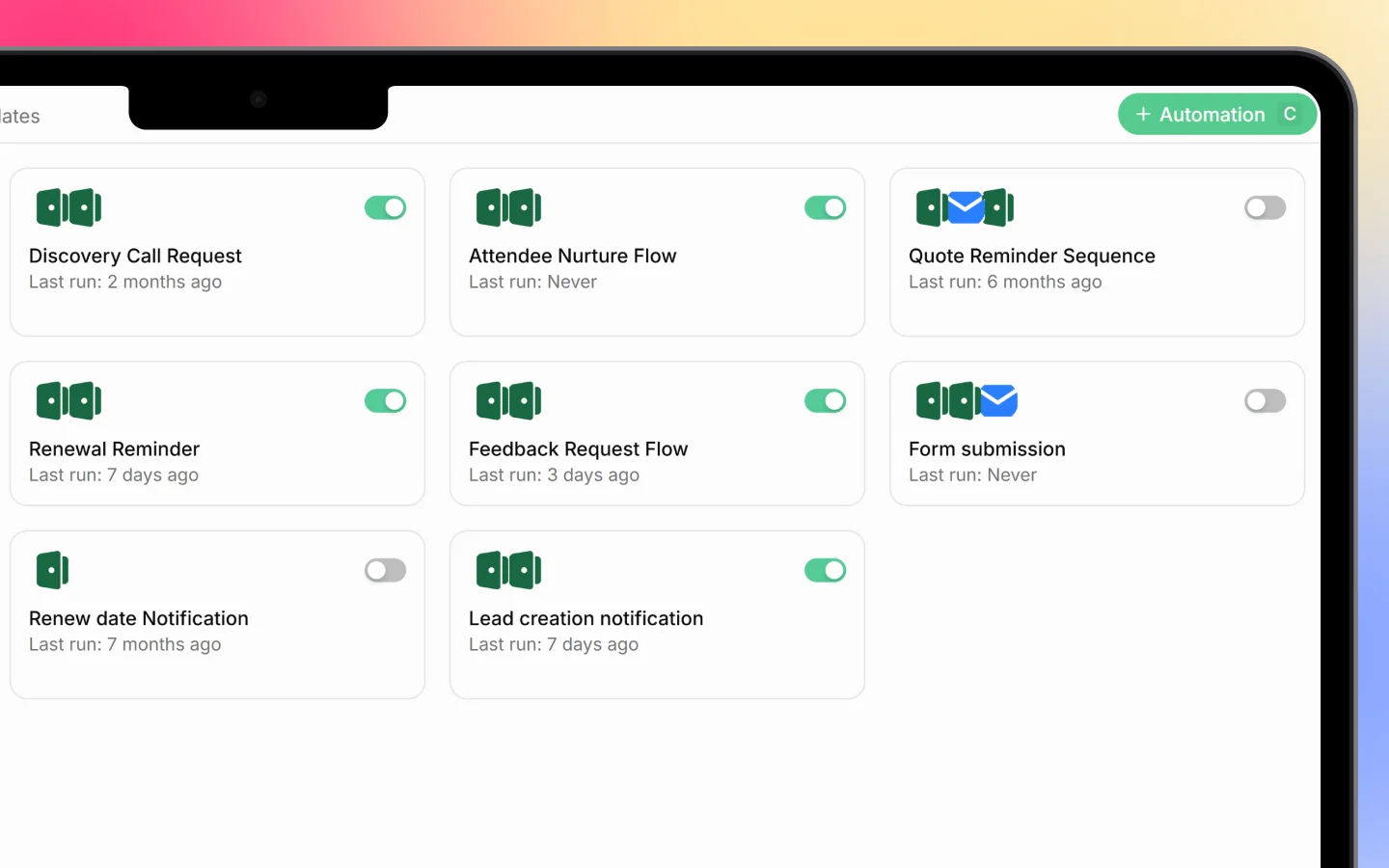
This guide walks you through creating an automation, either from a ready-made template or from scratch. For how automations work overall, see [Introduction to automations](https://docs.heffl.com/introduction-to-automations).
 ***
## Option 1: Start from a template (recommended)
The fastest way to get going:
1. Go to **Automations** and open the **Templates** tab
2. Browse templates by category (Leads, Deals, Quotations, Invoices, Payments)
3. Click a template to preview its trigger and steps
4. Click **Use this template**
5. Adjust the trigger, steps, and content to fit your business
6. Turn the automation on
Templates are the easiest start because the trigger and steps are already wired together; you only fine-tune them.
***
## Option 2: Start from scratch
To build a custom automation:
1. Go to **Automations** and click **+ Automation** (or **Start from scratch**)
2. In the **Add Automation** dialog, enter a **Name** and an optional **Description**
3. Click **Add Automation**
4. Build the flow in the builder (below)
***
## Building the flow
The automation builder is a visual canvas:
1. **Set the trigger**, the event that starts the automation (such as "Deal Stage Changed" or "Lead Created"). This is the first card.
2. **Add a step**, click the **+** below the trigger to add an action (such as "Send email")
3. **Configure each step**, set the details, for example the email content for a Send email step, or the task details for a Create Task step
4. **Add more steps** as needed, chaining actions together, and insert a **Delay** between steps if you want an action to happen later
You can view the flow as a **Canvas** (visual) or **Linear** (list) using the toggle, and use **Auto Layout** to tidy the canvas.
***
## Turning it on
An automation only runs when it is switched on. Use the on/off toggle at the top of the builder, or on the automation in the list. Toggle it off any time to pause it without losing the setup.
***
## Managing an automation
From the builder you can:
* **Edit** the trigger, steps, and content
* **Duplicate** the automation to create a variation
* Open **Manage** for its settings
* View **Runs** to see each time it has executed
***
## Testing and troubleshooting
After turning an automation on, check the **Runs** tab to confirm it fires as expected. Each run shows its status (such as Completed), and if a run fails, it shows the failed step and the error, so you can find and fix the problem.
Start simple: a single trigger with one or two actions. Once it runs reliably, add more steps.
***
## What to do next
1. Browse [templates](https://docs.heffl.com/introduction-to-automations) for ideas to adapt
2. Check the Runs log to confirm your automation works
3. Connect channels like [WhatsApp or email](https://docs.heffl.com/integrations-and-connected-apps) so message actions can send
***
## Option 1: Start from a template (recommended)
The fastest way to get going:
1. Go to **Automations** and open the **Templates** tab
2. Browse templates by category (Leads, Deals, Quotations, Invoices, Payments)
3. Click a template to preview its trigger and steps
4. Click **Use this template**
5. Adjust the trigger, steps, and content to fit your business
6. Turn the automation on
Templates are the easiest start because the trigger and steps are already wired together; you only fine-tune them.
***
## Option 2: Start from scratch
To build a custom automation:
1. Go to **Automations** and click **+ Automation** (or **Start from scratch**)
2. In the **Add Automation** dialog, enter a **Name** and an optional **Description**
3. Click **Add Automation**
4. Build the flow in the builder (below)
***
## Building the flow
The automation builder is a visual canvas:
1. **Set the trigger**, the event that starts the automation (such as "Deal Stage Changed" or "Lead Created"). This is the first card.
2. **Add a step**, click the **+** below the trigger to add an action (such as "Send email")
3. **Configure each step**, set the details, for example the email content for a Send email step, or the task details for a Create Task step
4. **Add more steps** as needed, chaining actions together, and insert a **Delay** between steps if you want an action to happen later
You can view the flow as a **Canvas** (visual) or **Linear** (list) using the toggle, and use **Auto Layout** to tidy the canvas.
***
## Turning it on
An automation only runs when it is switched on. Use the on/off toggle at the top of the builder, or on the automation in the list. Toggle it off any time to pause it without losing the setup.
***
## Managing an automation
From the builder you can:
* **Edit** the trigger, steps, and content
* **Duplicate** the automation to create a variation
* Open **Manage** for its settings
* View **Runs** to see each time it has executed
***
## Testing and troubleshooting
After turning an automation on, check the **Runs** tab to confirm it fires as expected. Each run shows its status (such as Completed), and if a run fails, it shows the failed step and the error, so you can find and fix the problem.
Start simple: a single trigger with one or two actions. Once it runs reliably, add more steps.
***
## What to do next
1. Browse [templates](https://docs.heffl.com/introduction-to-automations) for ideas to adapt
2. Check the Runs log to confirm your automation works
3. Connect channels like [WhatsApp or email](https://docs.heffl.com/integrations-and-connected-apps) so message actions can send