> ## Documentation Index
> Fetch the complete documentation index at: https://docs.heffl.com/llms.txt
> Use this file to discover all available pages before exploring further.
# Recurring invoices
A recurring invoice automatically generates an invoice on a set schedule, so you do not recreate the same bill each cycle. It is ideal for clients on retainers, subscriptions, or maintenance contracts. You will find **Recurring Invoices** in the sidebar under Finance.
 ***
## How recurring invoices work
You set up a recurring invoice once, defining the client, line items, and a frequency. On each cycle, Heffl generates a draft invoice from that profile. You review the draft and send it yourself, so you stay in control of what goes out before the client receives it.
This saves you from rebuilding identical invoices while keeping a final check on each one.
***
## Setting up a recurring invoice
1. Go to **Recurring Invoices** in the sidebar
2. Click **+ Recurring Invoice** (or **+ Add Recurring Invoice**)
3. Fill in the setup:
* **Template** and **Profile name** (a label to identify this recurring profile)
* **Frequency**, how often it generates (see below)
* **Start date** and **End date** (leave the end date open for an ongoing profile)
* **Due days**, how many days after generation the invoice is due
* **Client** and **Contact**
* **Sales person** and an optional **Project** link
4. Add line items with Qty, Rate, Discount, and Tax, exactly as on a normal invoice
5. Save
The line-item builder is the same one used for invoices and quotations, with Line item, Heading, and Bundle, plus automatic Subtotal, Tax, and Total. See [Creating and sending quotations](https://docs.heffl.com/creating-and-sending-quotations) for the full details.
***
## Frequency options
The **Frequency** dropdown sets how often the invoice generates:
* Custom
* Daily
* Weekly
* Every 2 weeks
* Monthly
* Every 3 months
* (and longer intervals)
Pick the one that matches your billing cycle. For example, a monthly cleaning retainer would use Monthly.
***
## What happens each cycle
On each scheduled date, Heffl generates a draft invoice from the profile, using the saved client, line items, and amounts. Because it is a draft, you review it and send it yourself rather than it going out automatically. The generated invoice then behaves like any other invoice, with its own status and payment tracking. See [Invoices: creating, sending, and statuses](https://docs.heffl.com/invoices-creating-sending-and-statuses).
***
## The recurring invoices list
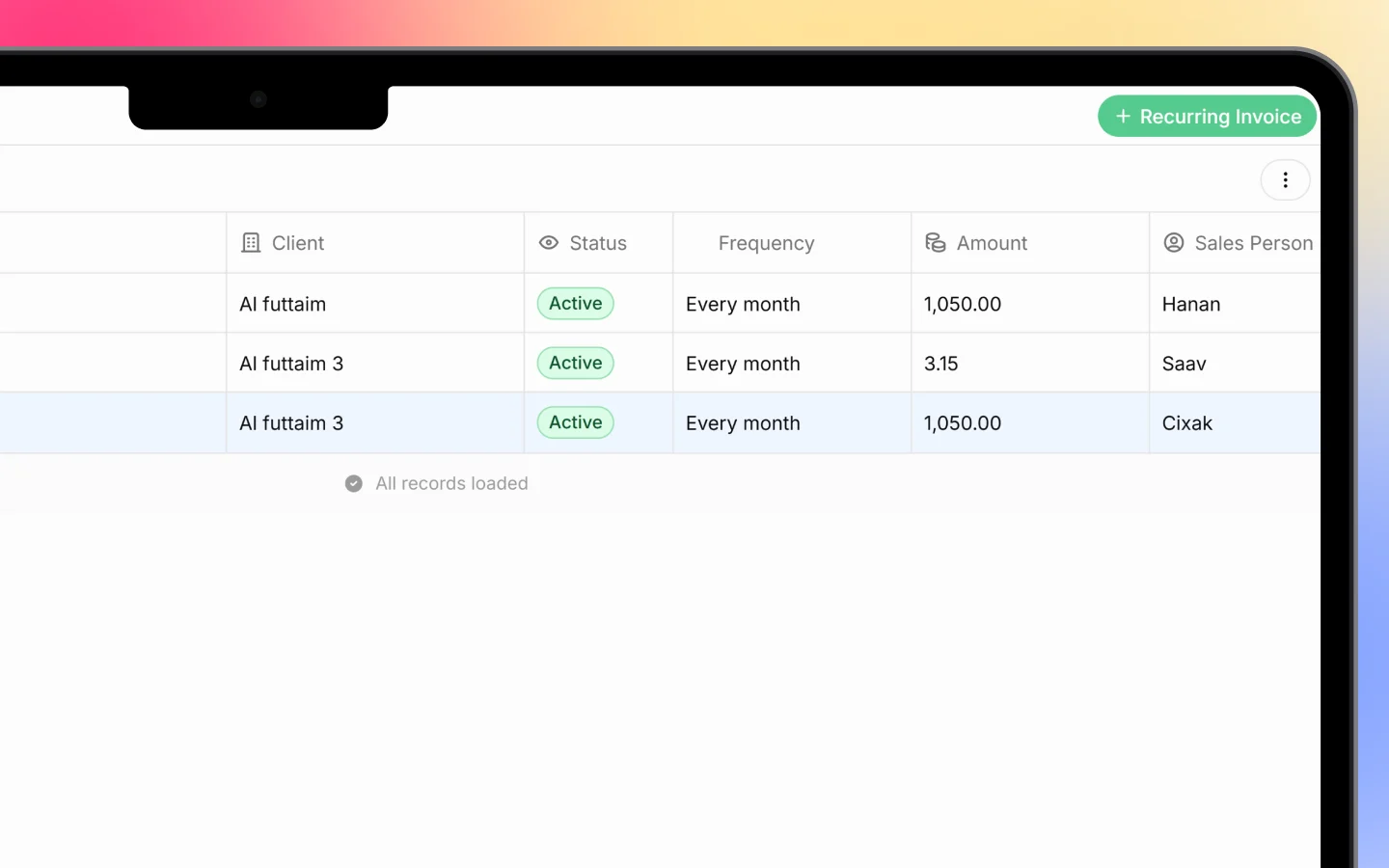
The list shows each recurring profile, one per row, with columns:
* **#**, the profile number
* **Name**, the profile name you set
* **Client**
* **Status** (for example, Active)
* **Frequency** (such as Every month)
* **Amount**
* **Sales Person**
An **Active** profile is currently generating invoices on its schedule. Use **Filters** to narrow the list and the **search** icon to find a profile.
***
## Managing a recurring invoice
Open a profile to edit its details, change its frequency, update line items, or adjust the start and end dates. To stop a profile generating new invoices, set an end date or change its status so it is no longer active. Existing invoices it has already generated are not affected.
***
## What to do next
1. Review generated drafts under [Invoices: creating, sending, and statuses](https://docs.heffl.com/invoices-creating-sending-and-statuses) before sending
2. [Payments: recording and collecting](https://docs.heffl.com/payments-recording-and-collecting) against them
3. Link a profile to a [Creating and managing projects](https://docs.heffl.com/creating-and-managing-projects) for retainer-based work
***
## How recurring invoices work
You set up a recurring invoice once, defining the client, line items, and a frequency. On each cycle, Heffl generates a draft invoice from that profile. You review the draft and send it yourself, so you stay in control of what goes out before the client receives it.
This saves you from rebuilding identical invoices while keeping a final check on each one.
***
## Setting up a recurring invoice
1. Go to **Recurring Invoices** in the sidebar
2. Click **+ Recurring Invoice** (or **+ Add Recurring Invoice**)
3. Fill in the setup:
* **Template** and **Profile name** (a label to identify this recurring profile)
* **Frequency**, how often it generates (see below)
* **Start date** and **End date** (leave the end date open for an ongoing profile)
* **Due days**, how many days after generation the invoice is due
* **Client** and **Contact**
* **Sales person** and an optional **Project** link
4. Add line items with Qty, Rate, Discount, and Tax, exactly as on a normal invoice
5. Save
The line-item builder is the same one used for invoices and quotations, with Line item, Heading, and Bundle, plus automatic Subtotal, Tax, and Total. See [Creating and sending quotations](https://docs.heffl.com/creating-and-sending-quotations) for the full details.
***
## Frequency options
The **Frequency** dropdown sets how often the invoice generates:
* Custom
* Daily
* Weekly
* Every 2 weeks
* Monthly
* Every 3 months
* (and longer intervals)
Pick the one that matches your billing cycle. For example, a monthly cleaning retainer would use Monthly.
***
## What happens each cycle
On each scheduled date, Heffl generates a draft invoice from the profile, using the saved client, line items, and amounts. Because it is a draft, you review it and send it yourself rather than it going out automatically. The generated invoice then behaves like any other invoice, with its own status and payment tracking. See [Invoices: creating, sending, and statuses](https://docs.heffl.com/invoices-creating-sending-and-statuses).
***
## The recurring invoices list
The list shows each recurring profile, one per row, with columns:
* **#**, the profile number
* **Name**, the profile name you set
* **Client**
* **Status** (for example, Active)
* **Frequency** (such as Every month)
* **Amount**
* **Sales Person**
An **Active** profile is currently generating invoices on its schedule. Use **Filters** to narrow the list and the **search** icon to find a profile.
***
## Managing a recurring invoice
Open a profile to edit its details, change its frequency, update line items, or adjust the start and end dates. To stop a profile generating new invoices, set an end date or change its status so it is no longer active. Existing invoices it has already generated are not affected.
***
## What to do next
1. Review generated drafts under [Invoices: creating, sending, and statuses](https://docs.heffl.com/invoices-creating-sending-and-statuses) before sending
2. [Payments: recording and collecting](https://docs.heffl.com/payments-recording-and-collecting) against them
3. Link a profile to a [Creating and managing projects](https://docs.heffl.com/creating-and-managing-projects) for retainer-based work