> ## Documentation Index
> Fetch the complete documentation index at: https://docs.heffl.com/llms.txt
> Use this file to discover all available pages before exploring further.
# Proforma invoices
A proforma invoice is a preliminary bill you send before the final invoice, often to confirm details or request advance payment. It looks like an invoice but is not yet a demand for payment. In Heffl, proforma invoices work just like regular invoices. You will find **Proforma** in the sidebar under Finance.
***
## What a proforma invoice is for
Use a proforma invoice when you need to give a client a formal document showing what they will be billed, before issuing the actual invoice. Common uses include:
* Requesting an advance or deposit
* Confirming price and scope before work begins
* Providing a document for the client's internal approval or budgeting
Once the work is confirmed or the advance is paid, you raise the final invoice. See [Invoices](https://docs.heffl.com/invoices-creating-sending-and-statuses).
***
## Creating a proforma invoice
1. Go to **Proforma** in the sidebar
2. Click **+ Proforma Invoice** (or press **C**)
3. Choose a template and currency
4. Set the **Date** and **Due date**
5. Select the **Client** and **Contact**
6. Add line items with Qty, Rate, Discount, and Tax
7. Save
The form is the same builder used for invoices and quotations, including Line item, Heading, and Bundle, with automatic Subtotal, Tax, and Total. See [Creating and sending quotations](https://docs.heffl.com/creating-and-sending-quotations) for the full line-item details.
 ***
## Proforma statuses
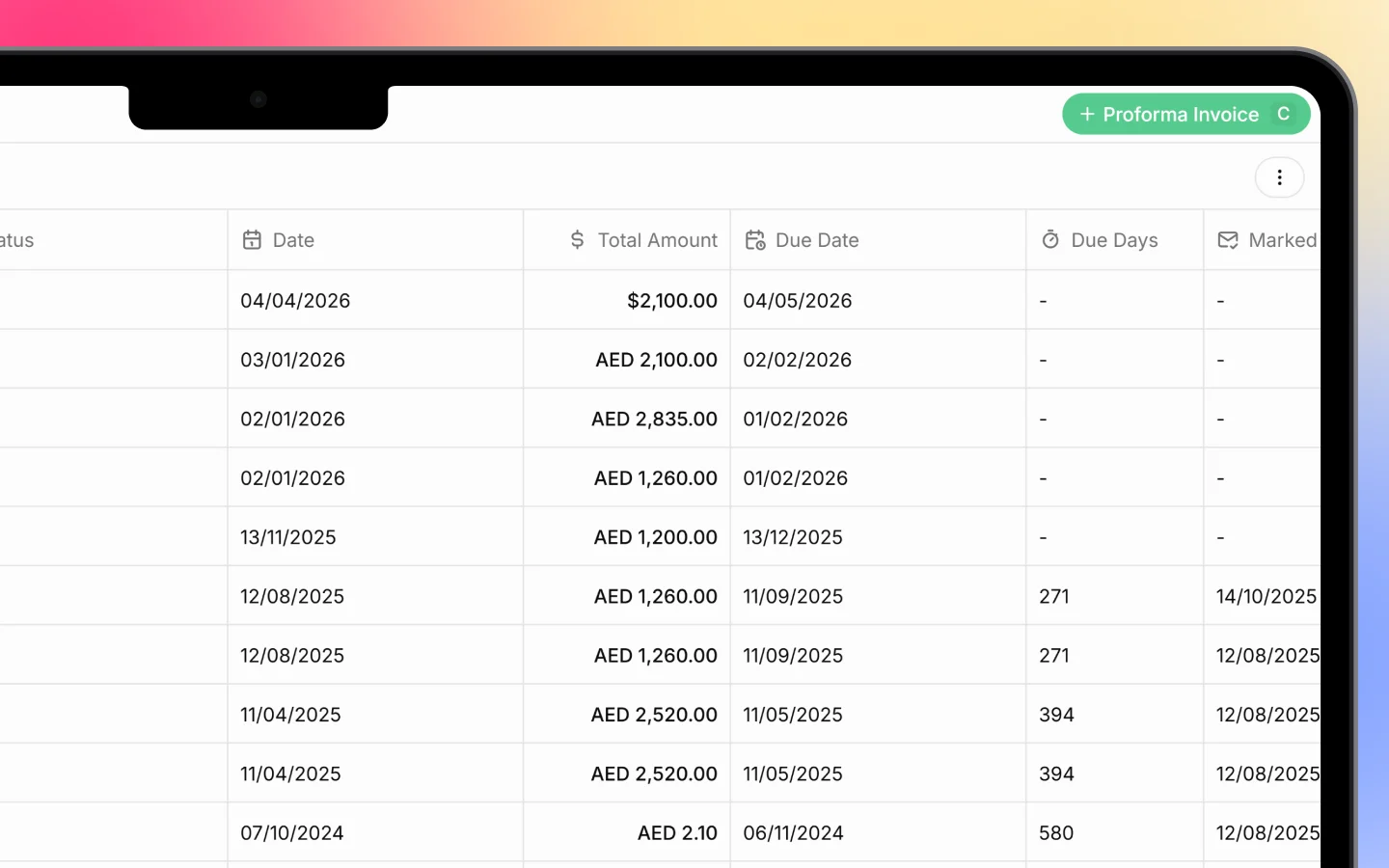
Each proforma invoice has a status shown in the list:
* **Draft**, created but not yet sent
* **Sent**, delivered to the client
The list shows columns including Number, Status, Date, Total Amount, Due Date, Due Days, Marked Sent On, Created At, Updated At, and Currency. Your total count appears at the bottom (for example, "12 proforma invoices").
***
## Customizing the list columns
You can choose which columns appear and their order, on this list and other record lists:
1. Click the **three-dot menu** in the top right
2. Select **View settings**
3. In the panel, use the controls beside each column to:
* **Edit** the column (pencil icon)
* **Pin** it so it stays visible while scrolling (pin icon)
* **Remove** it from the view (trash icon)
* **Reorder** columns by dragging the handle on the left
Available columns include Number, Status, Date, Total Amount, Due Date, Due Days, Marked Sent On, Created At, Updated At, Currency, Conversion rate, Subtotal, Total Tax, Total Discount, Link, and Notes.
***
## Exporting proforma invoices
To export your proforma list, click the **three-dot menu** and select **Export**. For a single proforma, use the print or export options within the document, the same as invoices.
***
## What to do next
1. Raise the final [invoice](https://docs.heffl.com/invoices-creating-sending-and-statuses) once the proforma is confirmed
2. [Record and collect payments](https://docs.heffl.com/payments-recording-and-collecting) such as advances
3. Set up [recurring invoices](https://docs.heffl.com/recurring-invoices) for repeat billing
***
## Proforma statuses
Each proforma invoice has a status shown in the list:
* **Draft**, created but not yet sent
* **Sent**, delivered to the client
The list shows columns including Number, Status, Date, Total Amount, Due Date, Due Days, Marked Sent On, Created At, Updated At, and Currency. Your total count appears at the bottom (for example, "12 proforma invoices").
***
## Customizing the list columns
You can choose which columns appear and their order, on this list and other record lists:
1. Click the **three-dot menu** in the top right
2. Select **View settings**
3. In the panel, use the controls beside each column to:
* **Edit** the column (pencil icon)
* **Pin** it so it stays visible while scrolling (pin icon)
* **Remove** it from the view (trash icon)
* **Reorder** columns by dragging the handle on the left
Available columns include Number, Status, Date, Total Amount, Due Date, Due Days, Marked Sent On, Created At, Updated At, Currency, Conversion rate, Subtotal, Total Tax, Total Discount, Link, and Notes.
***
## Exporting proforma invoices
To export your proforma list, click the **three-dot menu** and select **Export**. For a single proforma, use the print or export options within the document, the same as invoices.
***
## What to do next
1. Raise the final [invoice](https://docs.heffl.com/invoices-creating-sending-and-statuses) once the proforma is confirmed
2. [Record and collect payments](https://docs.heffl.com/payments-recording-and-collecting) such as advances
3. Set up [recurring invoices](https://docs.heffl.com/recurring-invoices) for repeat billing