> ## Documentation Index
> Fetch the complete documentation index at: https://docs.heffl.com/llms.txt
> Use this file to discover all available pages before exploring further.
# Payments: recording and collecting
Recording payments keeps your invoices up to date and shows you who has paid and who still owes. This guide covers recording a payment, applying it to invoices, and understanding excess amounts. You will find **Payments** in the sidebar under Finance.
***
## Recording a payment
Record a payment from the Payments page:
1. Go to **Payments** in the sidebar
2. Click **+ Payment** (or press **C**)
3. Select the **Client** who paid
4. Set the payment details:
* **Date** the payment was received
* **Payment method** (such as Bank Transfer or Credit card)
* **Deposit to account** (such as Undeposited Funds)
* **Currency** and **Amount**
* **Collected by**, the team member who took the payment
* **Ref No**, an optional reference such as a transaction ID
5. Apply the payment to the client's invoices (see below)
6. Click **Add payment** (or press **Ctrl + Enter**)
 ***
## Applying a payment to invoices
Once you select a client, their outstanding invoices appear in the form. You decide how the payment is applied:
* **Search invoices** to find a specific one
* Enter the **Payment** amount against each invoice, shown alongside its **Amount** and **Pending** balance
* Use **Bulk Apply** to spread the payment across multiple invoices automatically
* Click **Pay Full** to apply the full outstanding amount
As you apply the payment, the form shows a running summary:
* **Amount Received**, the total payment entered
* **Amount used for Payments**, how much has been applied to invoices
* **Amount in Excess**, what remains after applying it to invoices
***
## Understanding excess and unused amounts
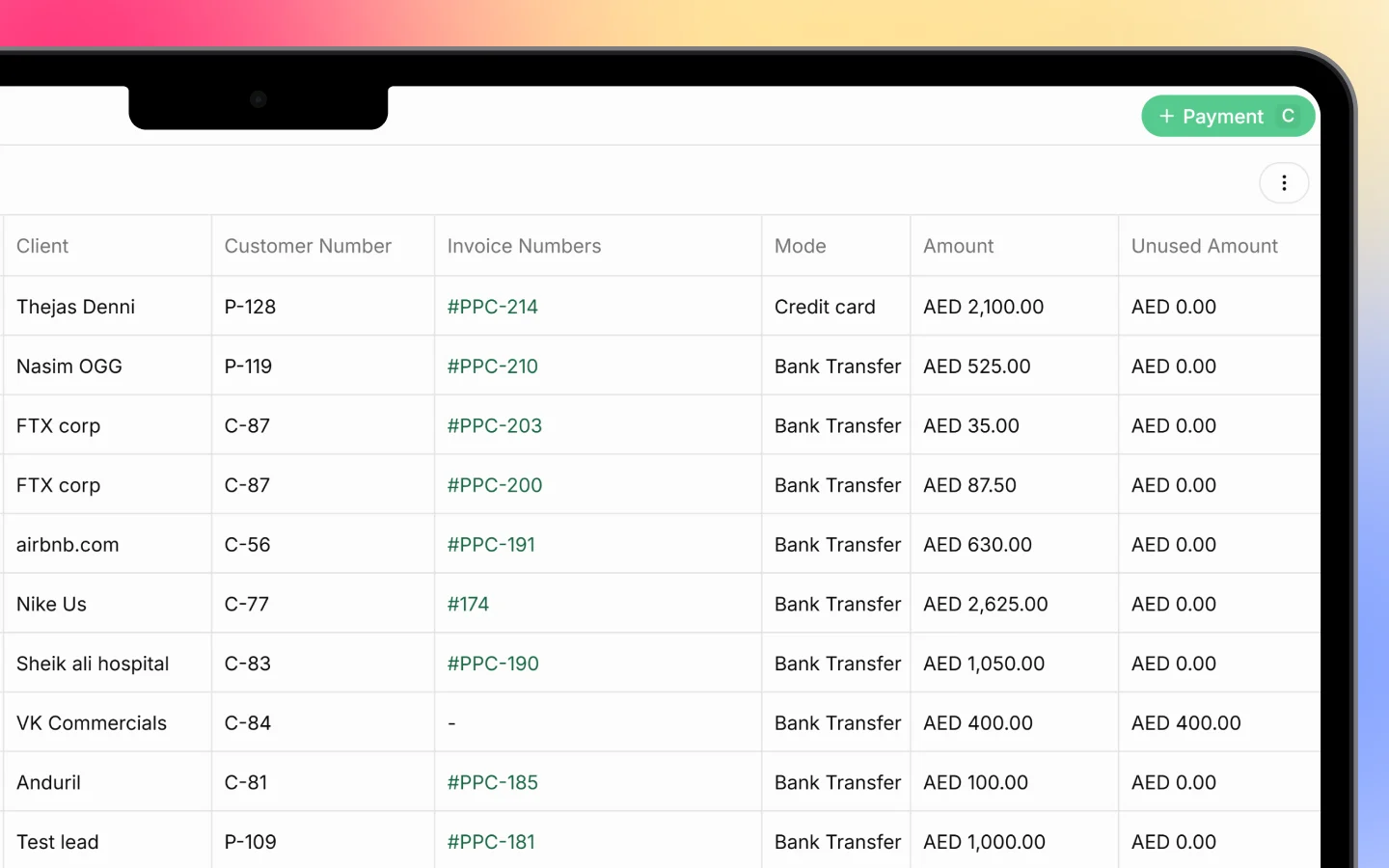
If a client pays more than their invoices require, the leftover is the **Amount in Excess**. This appears in the Payments list as the **Unused Amount**, the portion of a payment not yet applied to any invoice.
An unused amount stays as a credit against that client, ready to apply to a future invoice. For example, a payment of AED 400 with nothing yet applied shows AED 400 as the unused amount until you assign it.
***
## The Payments list
The Payments page lists every payment, one per row, with columns:
* **Number** (such as PAY-5071)
* **Date**
* **Client** and **Customer Number**
* **Invoice Numbers** the payment is applied to
* **Mode** (Bank Transfer, Credit card, and so on)
* **Amount** and **Unused Amount**
* **Reference Number**
* **Deposited To** (such as Undeposited Funds)
* **Actions**
The total of all payments shows at the top (for example, "Total: AED 120,447.30"). Use **Filters** to narrow the list and the **search** icon to find a specific payment.
***
## Collecting payments online
Beyond recording payments manually, clients can pay you online:
* Through a **shared invoice link**
* Through the **client portal**, where they see outstanding invoices and a Pay Now option
Online payments can be recorded against the invoice automatically. See [Setting up the client portal](https://docs.heffl.com/setting-up-the-client-portal).
***
## How payments connect to invoices
When a payment is applied to an invoice, the invoice's **Paid** amount rises and its **Balance Due** falls. Once fully paid, the invoice status becomes **Paid**. This keeps your invoice list and outstanding balances accurate without manual updates. See [Invoices: creating, sending, and statuses](https://docs.heffl.com/invoices-creating-sending-and-statuses).
***
## What to do next
1. Review your [invoices](https://docs.heffl.com/invoices-creating-sending-and-statuses) to see updated balances
2. Apply any unused amounts to new invoices as they are raised
3. Set up [recurring invoices](https://docs.heffl.com/recurring-invoices) for clients who pay on a schedule
***
## Applying a payment to invoices
Once you select a client, their outstanding invoices appear in the form. You decide how the payment is applied:
* **Search invoices** to find a specific one
* Enter the **Payment** amount against each invoice, shown alongside its **Amount** and **Pending** balance
* Use **Bulk Apply** to spread the payment across multiple invoices automatically
* Click **Pay Full** to apply the full outstanding amount
As you apply the payment, the form shows a running summary:
* **Amount Received**, the total payment entered
* **Amount used for Payments**, how much has been applied to invoices
* **Amount in Excess**, what remains after applying it to invoices
***
## Understanding excess and unused amounts
If a client pays more than their invoices require, the leftover is the **Amount in Excess**. This appears in the Payments list as the **Unused Amount**, the portion of a payment not yet applied to any invoice.
An unused amount stays as a credit against that client, ready to apply to a future invoice. For example, a payment of AED 400 with nothing yet applied shows AED 400 as the unused amount until you assign it.
***
## The Payments list
The Payments page lists every payment, one per row, with columns:
* **Number** (such as PAY-5071)
* **Date**
* **Client** and **Customer Number**
* **Invoice Numbers** the payment is applied to
* **Mode** (Bank Transfer, Credit card, and so on)
* **Amount** and **Unused Amount**
* **Reference Number**
* **Deposited To** (such as Undeposited Funds)
* **Actions**
The total of all payments shows at the top (for example, "Total: AED 120,447.30"). Use **Filters** to narrow the list and the **search** icon to find a specific payment.
***
## Collecting payments online
Beyond recording payments manually, clients can pay you online:
* Through a **shared invoice link**
* Through the **client portal**, where they see outstanding invoices and a Pay Now option
Online payments can be recorded against the invoice automatically. See [Setting up the client portal](https://docs.heffl.com/setting-up-the-client-portal).
***
## How payments connect to invoices
When a payment is applied to an invoice, the invoice's **Paid** amount rises and its **Balance Due** falls. Once fully paid, the invoice status becomes **Paid**. This keeps your invoice list and outstanding balances accurate without manual updates. See [Invoices: creating, sending, and statuses](https://docs.heffl.com/invoices-creating-sending-and-statuses).
***
## What to do next
1. Review your [invoices](https://docs.heffl.com/invoices-creating-sending-and-statuses) to see updated balances
2. Apply any unused amounts to new invoices as they are raised
3. Set up [recurring invoices](https://docs.heffl.com/recurring-invoices) for clients who pay on a schedule