> ## Documentation Index
> Fetch the complete documentation index at: https://docs.heffl.com/llms.txt
> Use this file to discover all available pages before exploring further.
# Numbering and document templates
Two Organization settings control how your records are numbered and how your client-facing documents look: **Module numbers** and **Document templates**. Both are workspace-wide and usually require admin access. You will find them under **Settings**, in the **Organization** group.
***
### Module numbers
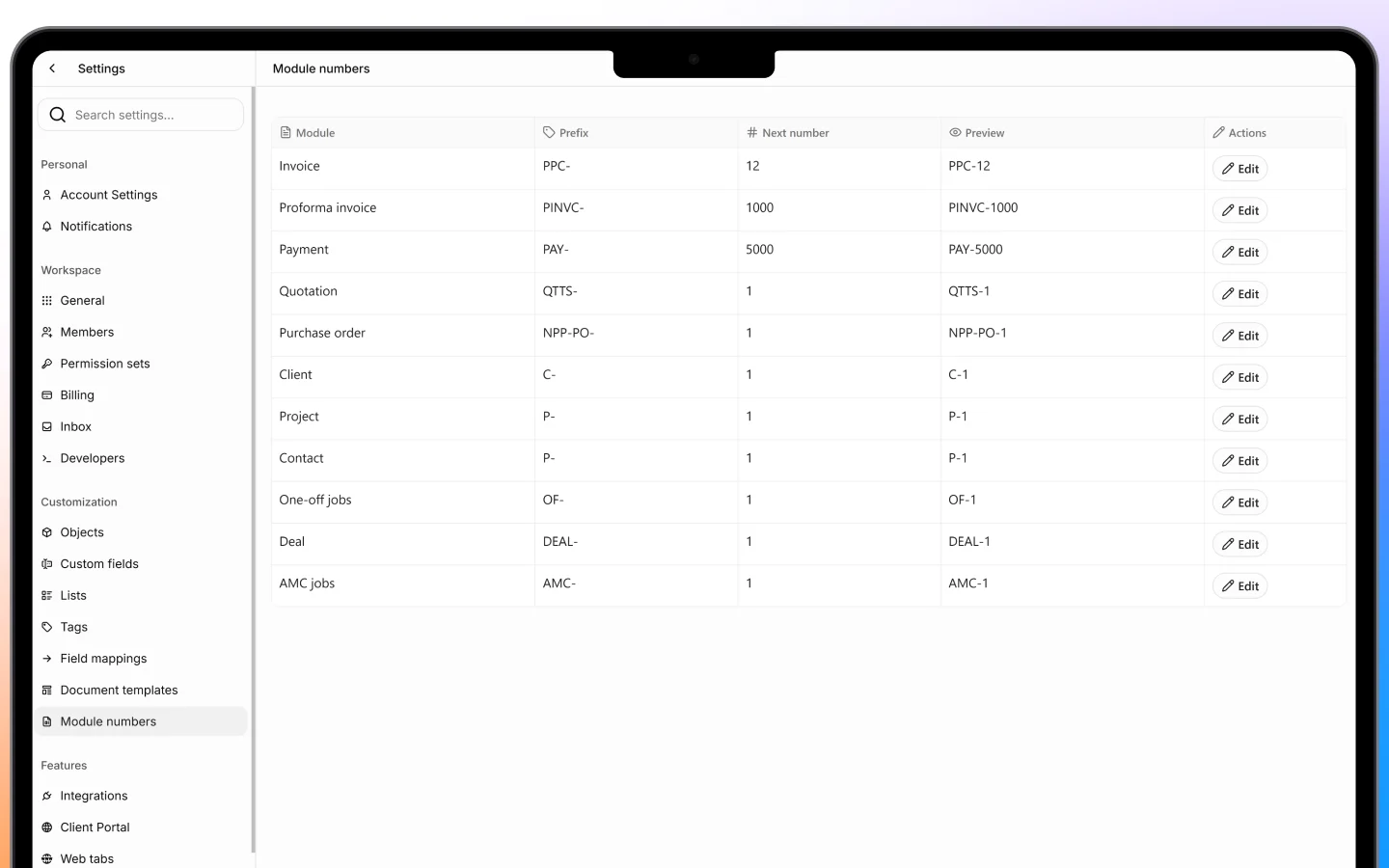
Every record in Heffl gets an automatic identifying number, and **Module numbers** is where you control how those numbers are formatted per module.
You have seen these numbers throughout Heffl, for example:
* Quotations as **QTTS-** numbers
* Proforma invoices as **PINV-** numbers
* Payments as **PAY-** numbers
* Jobs as **OF-** (one-off) and **AMC-** (contract) numbers
* Projects as **P-** numbers
On this screen you can typically set, for each module, the **prefix** (the letters before the number) and the **starting or next number** in the sequence. Heffl then assigns the next number automatically each time a record is created.
 ### Why it matters
Consistent numbering keeps your records organized and professional. Setting a sensible prefix per module means anyone can tell at a glance whether they are looking at a quotation, an invoice, or a job. If you are migrating from another system, you can set the starting number to continue your existing sequence rather than restarting from one.
Set your numbering early, before you create many records, so the format stays consistent across your whole history.
***
### Document templates
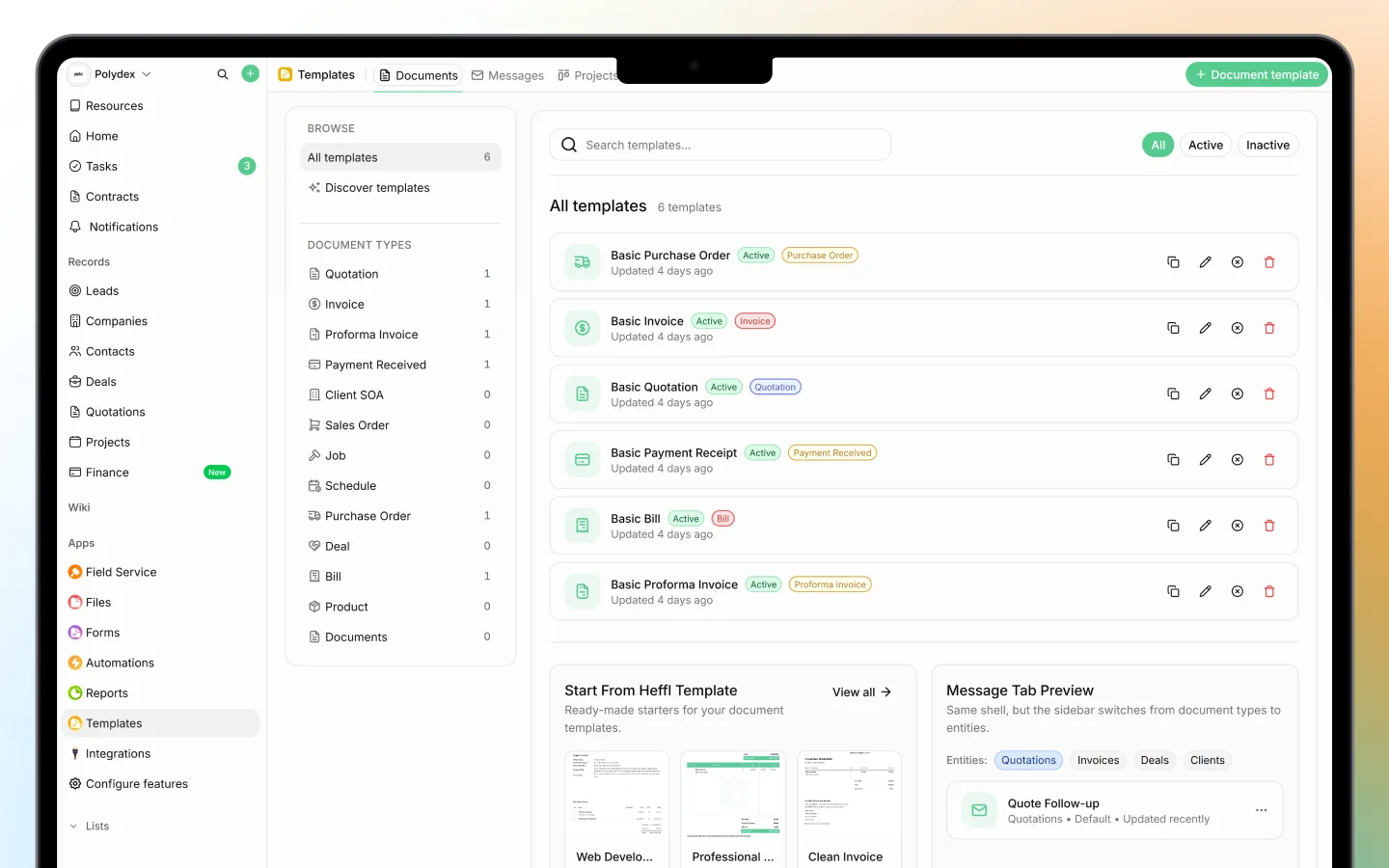
**Document templates** control the design and default content of the documents you send to clients, such as quotations, invoices, proforma invoices, and purchase orders. Managing them centrally here means every document your team sends looks consistent and on-brand.
A template typically controls:
* The **layout and branding** (your logo, colors, and company details)
* **Default text**, such as terms, notes, and payment instructions
* The **fields and columns** shown on the document
### Why it matters
Consistent numbering keeps your records organized and professional. Setting a sensible prefix per module means anyone can tell at a glance whether they are looking at a quotation, an invoice, or a job. If you are migrating from another system, you can set the starting number to continue your existing sequence rather than restarting from one.
Set your numbering early, before you create many records, so the format stays consistent across your whole history.
***
### Document templates
**Document templates** control the design and default content of the documents you send to clients, such as quotations, invoices, proforma invoices, and purchase orders. Managing them centrally here means every document your team sends looks consistent and on-brand.
A template typically controls:
* The **layout and branding** (your logo, colors, and company details)
* **Default text**, such as terms, notes, and payment instructions
* The **fields and columns** shown on the document
 ### How templates are used
When you create a quotation or invoice, you pick a template as the starting point, and the document inherits that template's design and defaults. You saw this when [creating a quotation](https://docs.heffl.com/creating-and-sending-quotations), where you choose a template before adding line items. Managing templates centrally means a change to a template applies to new documents built from it, so you update your branding or terms in one place rather than on every document.
### Creating and editing templates
From the Document templates screen you can create new templates and edit existing ones, setting up the layout and default content each should carry. Set up a template per document type you send, so your team always starts from the right design.
***
### How the two work together
Numbering and templates are the two halves of a polished client document:
* **Module numbers** give each document a clean, sequential identifier
* **Document templates** give it a consistent, branded appearance
Together they mean a quotation or invoice leaves your workspace looking professional and uniquely identified, without anyone formatting it by hand.
***
### What to do next
1. Set your [organization details](https://docs.heffl.com/workspace-and-organization-settings) so they appear correctly on documents
2. Review your templates before [sending quotations](https://docs.heffl.com/creating-and-sending-quotations) and [invoices](https://docs.heffl.com/invoices-creating-sending-and-statuses)
3. Confirm your numbering format early, before creating many records
### How templates are used
When you create a quotation or invoice, you pick a template as the starting point, and the document inherits that template's design and defaults. You saw this when [creating a quotation](https://docs.heffl.com/creating-and-sending-quotations), where you choose a template before adding line items. Managing templates centrally means a change to a template applies to new documents built from it, so you update your branding or terms in one place rather than on every document.
### Creating and editing templates
From the Document templates screen you can create new templates and edit existing ones, setting up the layout and default content each should carry. Set up a template per document type you send, so your team always starts from the right design.
***
### How the two work together
Numbering and templates are the two halves of a polished client document:
* **Module numbers** give each document a clean, sequential identifier
* **Document templates** give it a consistent, branded appearance
Together they mean a quotation or invoice leaves your workspace looking professional and uniquely identified, without anyone formatting it by hand.
***
### What to do next
1. Set your [organization details](https://docs.heffl.com/workspace-and-organization-settings) so they appear correctly on documents
2. Review your templates before [sending quotations](https://docs.heffl.com/creating-and-sending-quotations) and [invoices](https://docs.heffl.com/invoices-creating-sending-and-statuses)
3. Confirm your numbering format early, before creating many records