> ## Documentation Index
> Fetch the complete documentation index at: https://docs.heffl.com/llms.txt
> Use this file to discover all available pages before exploring further.
# Managing products and services (catalog)
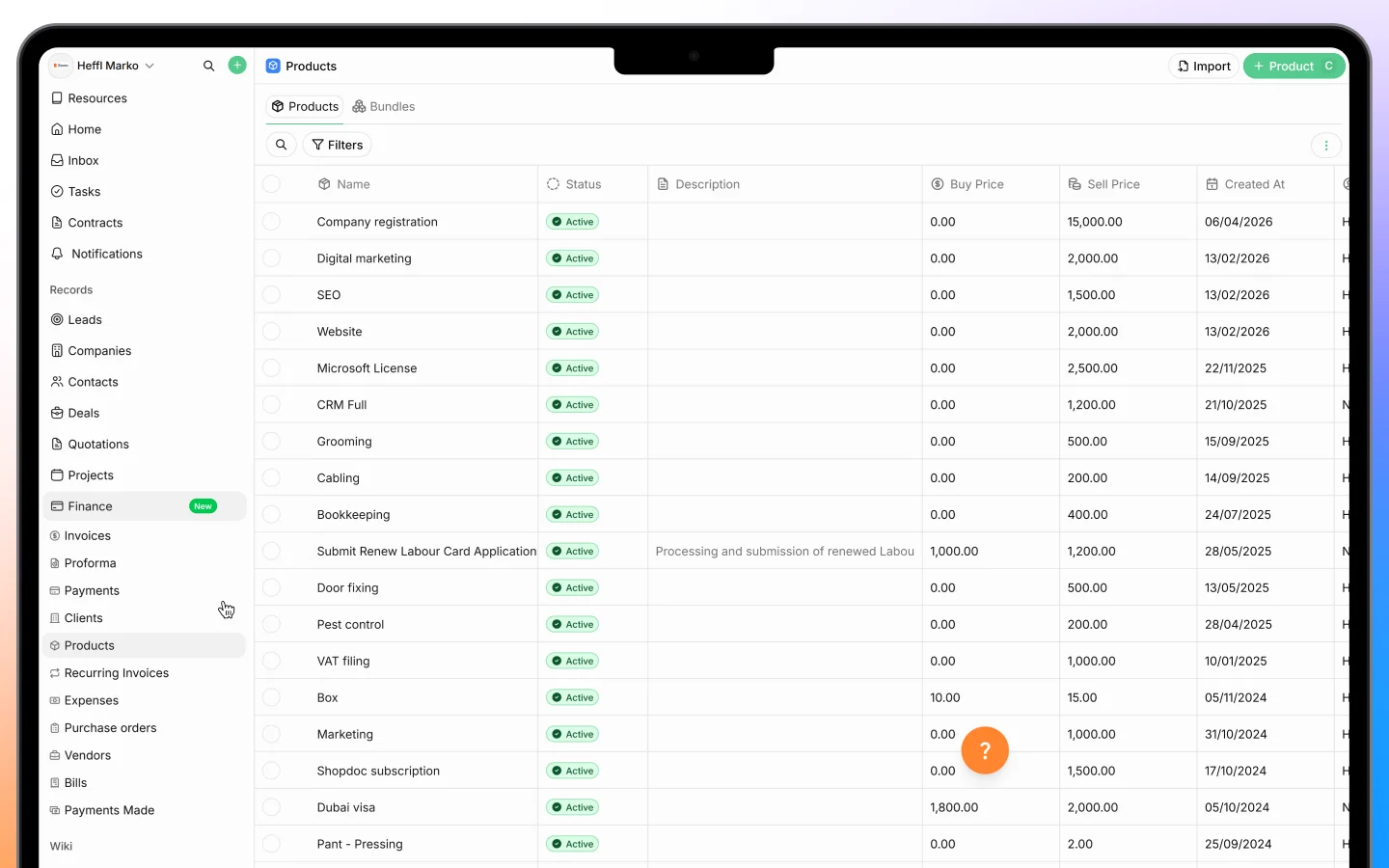
Your product catalog is the list of products and services you sell. Once set up, you select items from it when building quotes, invoices, and deals, and the price, tax, and description fill in automatically. This guide covers managing the catalog. You will find **Products** in the sidebar under Finance.
 ***
## Why use a catalog
Maintaining a catalog means you enter each product's details once and reuse them everywhere. This keeps pricing consistent across all your documents and saves you from retyping the same items. Changes to the catalog do not affect documents you have already created.
***
## Adding a product or service
1. Go to **Products** in the sidebar
2. Click **Add Product**
3. Fill in the details:
* **Name**, the product or service name (must be unique)
* **Type**, either Product or Service
* **Price**, the selling price
* **Buy Price**, the cost price, used for margin tracking
* **SKU**, an optional stock keeping unit
* **Description**
* **Default Tax Rate**, applied automatically when the item is used
* **Image**, an optional photo or icon
* **Active**, whether the item appears in selection lists
4. Save
***
## Using products in documents
When adding line items to a quotation, invoice, or deal:
1. Start typing the product name in the line item field
2. Select it from the matching results
3. The price, tax, and description fill in automatically from the catalog
You can override any of these values for a specific document without changing the catalog itself. This lets you adjust a one-off price while keeping your standard pricing intact.
***
## Active and inactive products
To retire a product without deleting it, mark it inactive:
1. Open the product
2. Toggle the **Active** switch off
The product stops appearing in dropdown lists for new documents, but remains on any existing documents that already use it. Use this for items you no longer sell but want to keep for historical records.
***
## Client portal visibility
You can control which products your clients see in the client portal:
1. Edit the product
2. Enable **Client Portal Visibility**
3. Optionally add a **Client Portal Description** if you want clients to see different wording than your internal description
This lets you show a curated, client-friendly catalog in the portal. See [Setting up the client portal](https://docs.heffl.com/setting-up-the-client-portal).
***
## Bulk operations
For managing many products at once:
* **Bulk create** imports multiple products in one go
* **Bulk delete** lets you select and remove up to 300 products at a time
***
## Finding products
Use the controls on the Products page to locate items:
* **Search** finds products by name
* **Active/Inactive** filter shows only active products or all of them
* **Creator** filters by who added the product
***
## What to do next
1. [Create a quotation](https://docs.heffl.com/creating-and-sending-quotations) using items from your catalog
2. [Convert an accepted quote to an invoice](https://docs.heffl.com/invoices-creating-sending-and-statuses)
3. Set [client portal visibility](https://docs.heffl.com/setting-up-the-client-portal) on the products your clients should see
***
## Why use a catalog
Maintaining a catalog means you enter each product's details once and reuse them everywhere. This keeps pricing consistent across all your documents and saves you from retyping the same items. Changes to the catalog do not affect documents you have already created.
***
## Adding a product or service
1. Go to **Products** in the sidebar
2. Click **Add Product**
3. Fill in the details:
* **Name**, the product or service name (must be unique)
* **Type**, either Product or Service
* **Price**, the selling price
* **Buy Price**, the cost price, used for margin tracking
* **SKU**, an optional stock keeping unit
* **Description**
* **Default Tax Rate**, applied automatically when the item is used
* **Image**, an optional photo or icon
* **Active**, whether the item appears in selection lists
4. Save
***
## Using products in documents
When adding line items to a quotation, invoice, or deal:
1. Start typing the product name in the line item field
2. Select it from the matching results
3. The price, tax, and description fill in automatically from the catalog
You can override any of these values for a specific document without changing the catalog itself. This lets you adjust a one-off price while keeping your standard pricing intact.
***
## Active and inactive products
To retire a product without deleting it, mark it inactive:
1. Open the product
2. Toggle the **Active** switch off
The product stops appearing in dropdown lists for new documents, but remains on any existing documents that already use it. Use this for items you no longer sell but want to keep for historical records.
***
## Client portal visibility
You can control which products your clients see in the client portal:
1. Edit the product
2. Enable **Client Portal Visibility**
3. Optionally add a **Client Portal Description** if you want clients to see different wording than your internal description
This lets you show a curated, client-friendly catalog in the portal. See [Setting up the client portal](https://docs.heffl.com/setting-up-the-client-portal).
***
## Bulk operations
For managing many products at once:
* **Bulk create** imports multiple products in one go
* **Bulk delete** lets you select and remove up to 300 products at a time
***
## Finding products
Use the controls on the Products page to locate items:
* **Search** finds products by name
* **Active/Inactive** filter shows only active products or all of them
* **Creator** filters by who added the product
***
## What to do next
1. [Create a quotation](https://docs.heffl.com/creating-and-sending-quotations) using items from your catalog
2. [Convert an accepted quote to an invoice](https://docs.heffl.com/invoices-creating-sending-and-statuses)
3. Set [client portal visibility](https://docs.heffl.com/setting-up-the-client-portal) on the products your clients should see