> ## Documentation Index
> Fetch the complete documentation index at: https://docs.heffl.com/llms.txt
> Use this file to discover all available pages before exploring further.
# Logging activities, notes, and follow-ups,
Every lead, contact, and deal in Heffl has an Activity area where you record what happens over time: calls, meetings, notes, emails, and tasks. Keeping this up to date gives you a complete history of every interaction. This page applies to leads, contacts, and deals, since the Activity area works the same way in all three.
 ***
## Where to find it
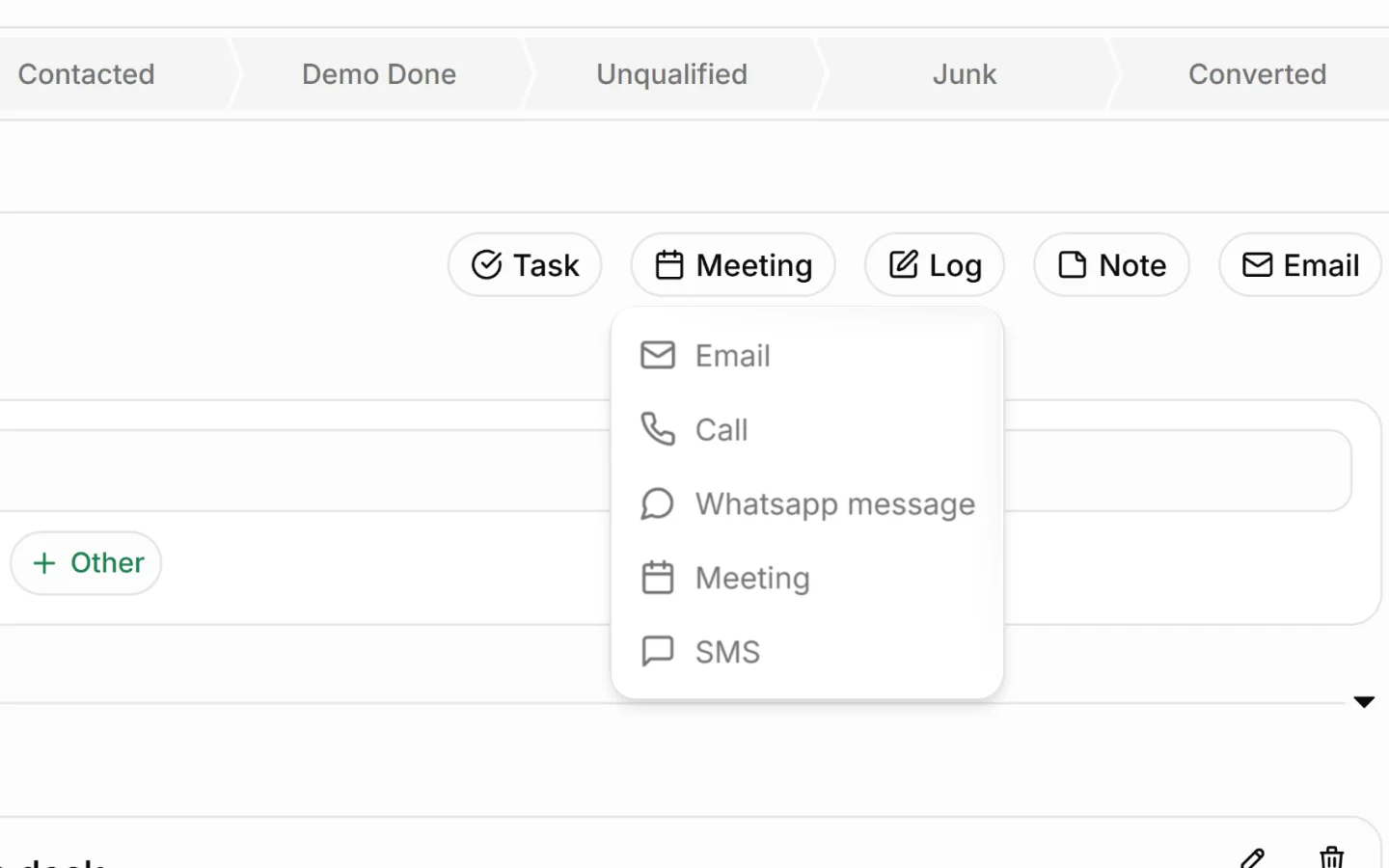
Open any lead, contact, or deal and you will land on the **Activity** tab. It has two parts:
* **Focus** at the top, for setting a quick task or next action
* **History** below, a timeline of everything logged, newest grouped by date
A row of buttons (Task, Meeting, Log, Note, Email) lets you add each type of entry.
***
## Logging activity
Use the buttons to record different kinds of interaction:
**Log** Record a call or general interaction that has already happened. Use this to note the outcome of a phone call or conversation.
**Meeting** Schedule or record a meeting. Useful for tracking site visits, demos, and calls with a set time.
**Email** Log an email related to the record, keeping correspondence attached to the right lead, contact, or deal.
**Note** Add a written note (covered in detail below).
Each entry is timestamped and added to the History timeline, so you and your team can see the full sequence of events.
***
## Adding and viewing notes
Notes capture detail: what was discussed, what was agreed, or anything worth remembering.
### **To add a note**
1. Click **Note** in the button row
2. Type your note
3. Save
You can also write a quick comment in the History section using the comment box, and attach a file with the attachment icon.
**To view notes** All notes appear in the History timeline alongside other activity, grouped by date (for example, Last Week, Last Month). Pin important notes to keep them at the top.
***
## Setting follow-ups and next activity dates
Follow-ups make sure nothing goes cold. In the Focus area at the top of the Activity tab:
1. Type a task title in the **Task title** field
2. Choose when it is due using the quick options: **In 1h**, **In 3h**, **Tomorrow**, **Next week**, or **Other** for a specific date
3. The task is created and tied to this record
Setting a due date also feeds the **Next Activity Date**, which you can filter by in the lead list. This is the best way to plan your day and surface the records that need attention soon. See [Filtering and sorting leads](https://docs.heffl.com/filtering-and-sorting-leads).
***
## The activity timeline
The History timeline is a running record of everything that has happened, including:
* Activities you log (calls, meetings, emails)
* Notes and comments
* System events, such as "Lead converted to deal" or "created Deal"
* Who did each action and when
Because it captures both your entries and automatic events, the timeline is a reliable audit trail for any record.
***
## Why this matters
Logging activity consistently means:
* Anyone on your team can pick up a lead or deal and see its full history
* Follow-ups are scheduled, not forgotten
* Reports reflect real activity
* Nothing depends on one person's memory
***
## What to do next
1. Filter leads by next activity date to plan follow-ups
2. [Add notes and tags](https://docs.heffl.com/adding-notes-and-tags-to-a-lead) to organize records further
3. Convert active records into deals or projects
***
## Where to find it
Open any lead, contact, or deal and you will land on the **Activity** tab. It has two parts:
* **Focus** at the top, for setting a quick task or next action
* **History** below, a timeline of everything logged, newest grouped by date
A row of buttons (Task, Meeting, Log, Note, Email) lets you add each type of entry.
***
## Logging activity
Use the buttons to record different kinds of interaction:
**Log** Record a call or general interaction that has already happened. Use this to note the outcome of a phone call or conversation.
**Meeting** Schedule or record a meeting. Useful for tracking site visits, demos, and calls with a set time.
**Email** Log an email related to the record, keeping correspondence attached to the right lead, contact, or deal.
**Note** Add a written note (covered in detail below).
Each entry is timestamped and added to the History timeline, so you and your team can see the full sequence of events.
***
## Adding and viewing notes
Notes capture detail: what was discussed, what was agreed, or anything worth remembering.
### **To add a note**
1. Click **Note** in the button row
2. Type your note
3. Save
You can also write a quick comment in the History section using the comment box, and attach a file with the attachment icon.
**To view notes** All notes appear in the History timeline alongside other activity, grouped by date (for example, Last Week, Last Month). Pin important notes to keep them at the top.
***
## Setting follow-ups and next activity dates
Follow-ups make sure nothing goes cold. In the Focus area at the top of the Activity tab:
1. Type a task title in the **Task title** field
2. Choose when it is due using the quick options: **In 1h**, **In 3h**, **Tomorrow**, **Next week**, or **Other** for a specific date
3. The task is created and tied to this record
Setting a due date also feeds the **Next Activity Date**, which you can filter by in the lead list. This is the best way to plan your day and surface the records that need attention soon. See [Filtering and sorting leads](https://docs.heffl.com/filtering-and-sorting-leads).
***
## The activity timeline
The History timeline is a running record of everything that has happened, including:
* Activities you log (calls, meetings, emails)
* Notes and comments
* System events, such as "Lead converted to deal" or "created Deal"
* Who did each action and when
Because it captures both your entries and automatic events, the timeline is a reliable audit trail for any record.
***
## Why this matters
Logging activity consistently means:
* Anyone on your team can pick up a lead or deal and see its full history
* Follow-ups are scheduled, not forgotten
* Reports reflect real activity
* Nothing depends on one person's memory
***
## What to do next
1. Filter leads by next activity date to plan follow-ups
2. [Add notes and tags](https://docs.heffl.com/adding-notes-and-tags-to-a-lead) to organize records further
3. Convert active records into deals or projects