> ## Documentation Index
> Fetch the complete documentation index at: https://docs.heffl.com/llms.txt
> Use this file to discover all available pages before exploring further.
# Linking contacts to a company
Contacts are the individual people you deal with, and companies are the businesses they belong to. Linking them keeps each person connected to the right organization, so opening a company shows everyone you work with there. This guide covers how to link contacts to a company.
***
## How contacts and companies relate
A company can have many contacts, but each contact belongs to one company. For example, the company "Epic Games" might have several contacts such as a primary buyer and an accounts person.
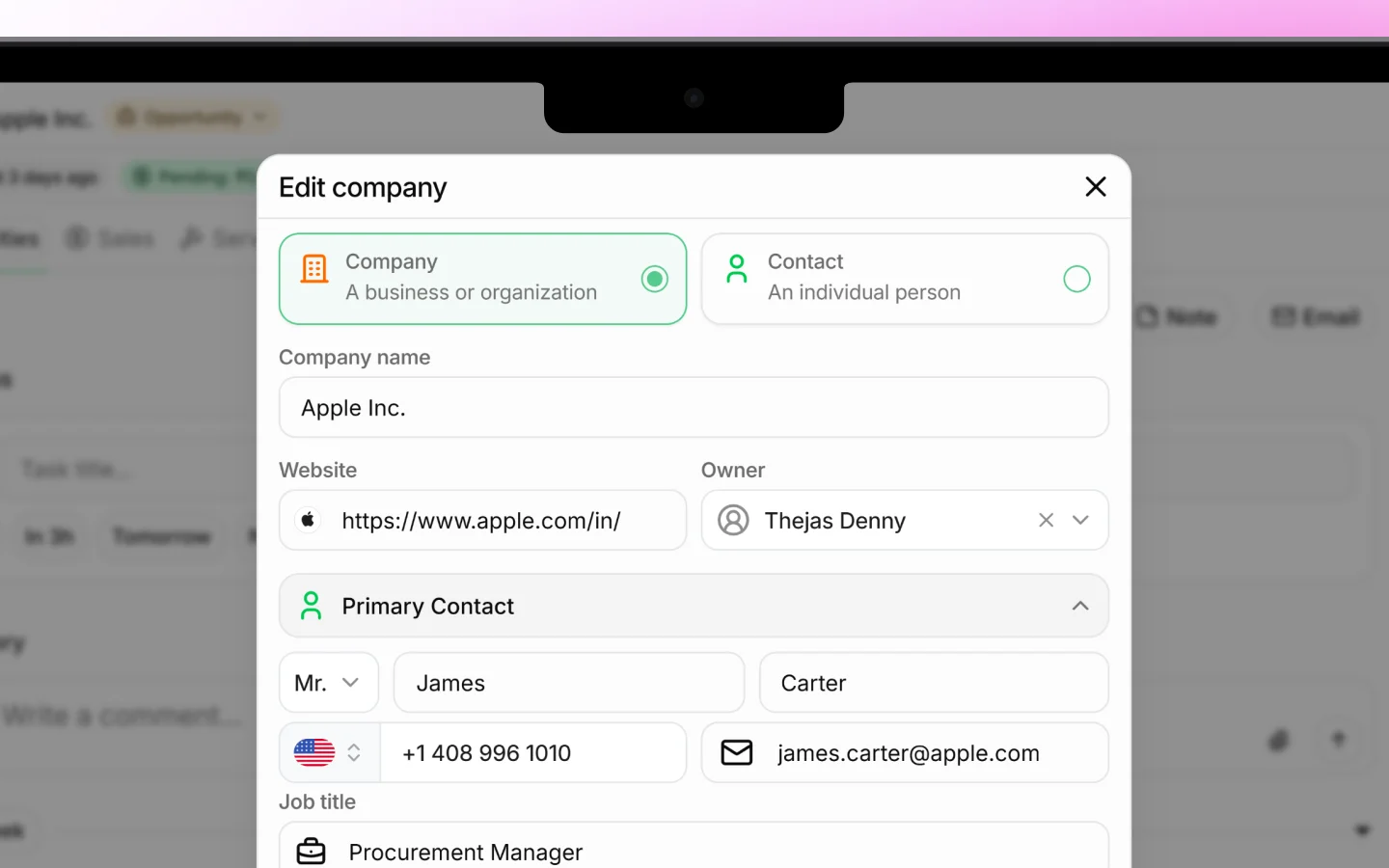
One contact is marked as the **Primary Contact**, the main person you deal with at that company. The primary contact shows in the Contacts column of the company list.
***
## Linking a contact when adding a company
When you create a company, you can set its primary contact straight away:
1. Click **Add Company**
2. In the **Primary Contact** field, select an existing contact or create a new one
3. Finish adding the company
The contact is now linked, and you can add more contacts later from the company record.
 ***
## Linking a contact from the company record
To add or change contacts on an existing company:
1. Open the company by clicking its row in the Companies list
2. Find the **Contacts** section
3. Add an existing contact, or create a new one to link it
4. Set or change which contact is the **Primary Contact** if needed
All linked contacts appear together on the company record, so you can see everyone at that business in one place.
***
## Linking from the contact side
You can also set the link when working with a contact:
1. Go to **Contacts** in the sidebar
2. Open or create a contact
3. Set the **Company** field to the business they belong to
This creates the same link, just approached from the contact rather than the company. Either way, the two records become connected.
***
## Changing the primary contact
If the main person you deal with changes, update the primary contact:
1. Open the company record
2. In the Contacts section, set a different contact as primary
The new primary contact then shows in the company list and on documents where the primary contact appears.
***
## Why linking matters
Linking contacts to companies keeps your data connected and useful:
* Opening a company shows all its people at once
* Quotes and invoices can pull the right contact automatically
* You avoid duplicate or orphaned contact records
* Your team always knows who to reach at each business
***
## What to do next
1. [Add and manage contacts](https://docs.heffl.com/adding-and-managing-contacts) in detail
2. Create [deals](https://docs.heffl.com/adding-and-managing-deals) linked to a company and its contacts
3. Send a [quotation](https://docs.heffl.com/creating-and-sending-quotations) to a company's primary contact
***
## Linking a contact from the company record
To add or change contacts on an existing company:
1. Open the company by clicking its row in the Companies list
2. Find the **Contacts** section
3. Add an existing contact, or create a new one to link it
4. Set or change which contact is the **Primary Contact** if needed
All linked contacts appear together on the company record, so you can see everyone at that business in one place.
***
## Linking from the contact side
You can also set the link when working with a contact:
1. Go to **Contacts** in the sidebar
2. Open or create a contact
3. Set the **Company** field to the business they belong to
This creates the same link, just approached from the contact rather than the company. Either way, the two records become connected.
***
## Changing the primary contact
If the main person you deal with changes, update the primary contact:
1. Open the company record
2. In the Contacts section, set a different contact as primary
The new primary contact then shows in the company list and on documents where the primary contact appears.
***
## Why linking matters
Linking contacts to companies keeps your data connected and useful:
* Opening a company shows all its people at once
* Quotes and invoices can pull the right contact automatically
* You avoid duplicate or orphaned contact records
* Your team always knows who to reach at each business
***
## What to do next
1. [Add and manage contacts](https://docs.heffl.com/adding-and-managing-contacts) in detail
2. Create [deals](https://docs.heffl.com/adding-and-managing-deals) linked to a company and its contacts
3. Send a [quotation](https://docs.heffl.com/creating-and-sending-quotations) to a company's primary contact