> ## Documentation Index
> Fetch the complete documentation index at: https://docs.heffl.com/llms.txt
> Use this file to discover all available pages before exploring further.
# Invoices: creating, sending, and statuses
Invoices are the bills you send clients to collect payment. They work much like quotations, with the same template, line item, and sending tools, but an invoice is a request for payment rather than an offer. This guide covers what is specific to invoices. You will find **Invoices** in the sidebar under Finance.
***
## Creating an invoice
1. Go to **Invoices** in the sidebar
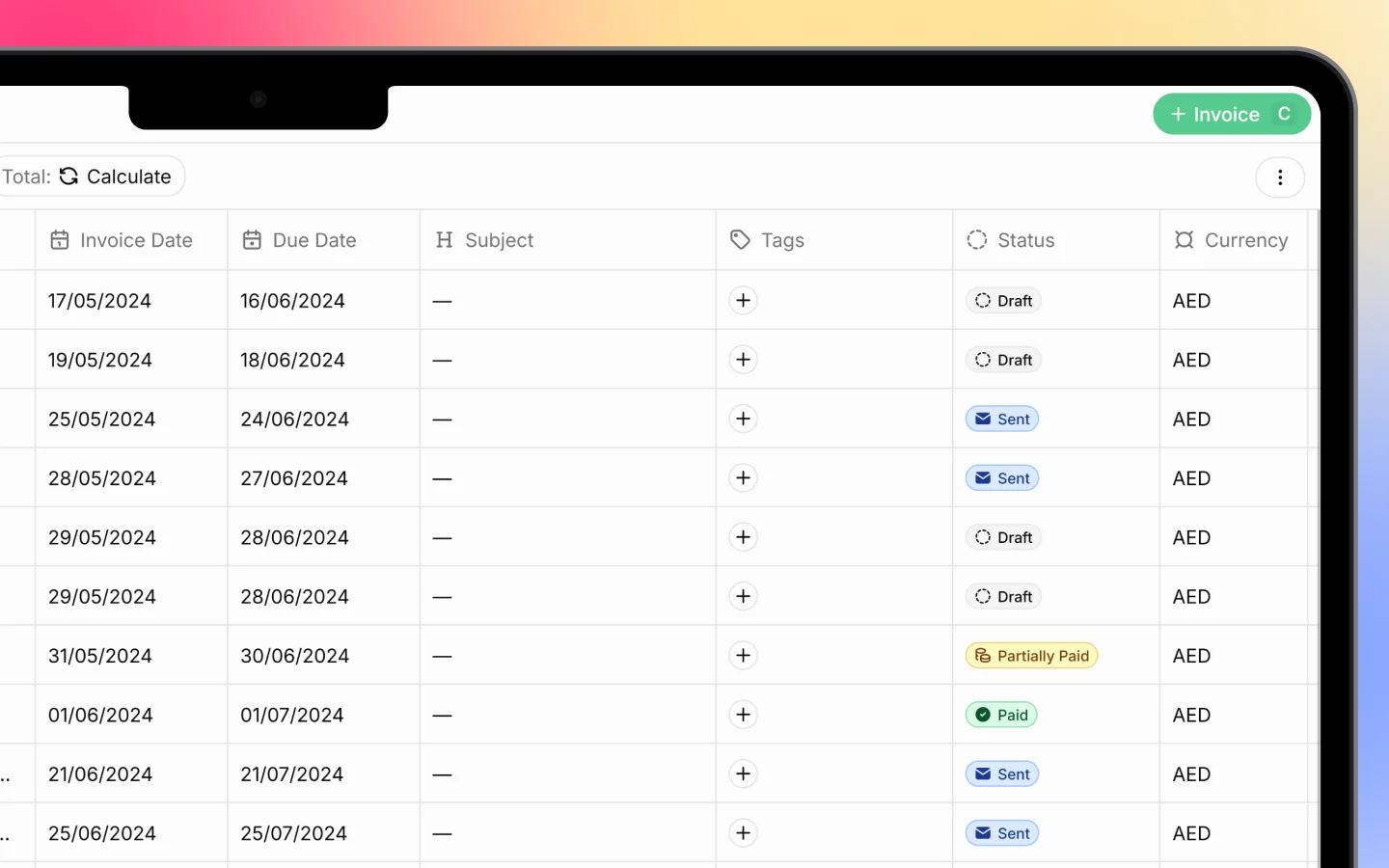
2. Click **+ Invoice** (or press **C**)
3. Choose a template and fill in the details
4. Add line items
5. Save
 ***
### Filling in the invoice
The invoice form mirrors the quotation form, with a few invoice-specific fields:
* **Template** and **Currency**
* **Date** and **Due date**, when payment is expected
* **Tags** and **Sales person**
* **Client** and **Contact**
* **Project** and **Job**, to link the invoice to work being delivered
* **Subject**
Add line items exactly as you do on a quote, using **Line item**, **Heading**, and **Bundle**, with Qty, Rate, Discount, and Tax. The **Subtotal**, **Discount**, **Tax**, and **Total** calculate automatically. See [Creating and sending quotations](https://docs.heffl.com/creating-and-sending-quotations) for the full line-item details, which are identical here.
Two toggles are specific to invoices:
* **I have received the payment**, to mark the invoice paid immediately if the client has already paid
* **Payment schedule**, to split the invoice into scheduled installments
***
### Form and content views
As with quotes, switch between **Form** (the structured data) and **Content** (the document layout) at the top right.
The Content editor uses merge variables such as `{{Invoice.Number}}`, `{{Invoice.DueDate}}`, `{{Client.Name}}`, `{{Contact.Email}}`, and `{{Invoice.LineItems}}`. These fill in automatically with the invoice's real data when the document is generated, so your template stays reusable.
***
### Invoice statuses
Each invoice carries a status you can see in the list and filter by:
* **Draft**, created but not yet sent
* **Sent**, delivered to the client and awaiting payment
* **Paid**, payment received in full
* **Overdue**, past the due date without full payment
The list also shows useful columns: number, subject, date, client, **Amount**, **Amount Excl VAT**, and **Output VAT**, so you can see tax breakdowns at a glance. Your total count appears at the bottom (for example, "212 invoices").
To see a grand total, click **Calculate** next to Total in the toolbar.
***
### Sending an invoice
Send an invoice the same way as a quote, from the buttons at the top of the invoice:
* **Send via email** delivers it to the client
* **Share a link** gives the client a link to view and pay online
* **Print** opens the print dialog, where you can print or save as PDF
* **Export PDF** downloads a PDF copy
Sending an invoice updates its status to Sent. If the client pays online through a shared link or the portal, the payment can be recorded against it. See [Setting up the client portal](https://docs.heffl.com/setting-up-the-client-portal).
***
### Recording payment
When a client pays, record it against the invoice so its status and balance update. An invoice shows its **Paid** amount and **Balance Due** so you always know what is outstanding. See [Payments: recording and collecting](https://docs.heffl.com/payments-recording-and-collecting).
***
### Exporting invoices
To export your invoice list, use **Export PDF** in the top right of the Invoices page. For a single invoice, use Export PDF or Print from within the invoice.
***
### What to do next
1. [Record and collect payments](https://docs.heffl.com/payments-recording-and-collecting) against your invoices
2. Set up [recurring invoices](https://docs.heffl.com/recurring-invoices) for repeat billing
3. Review [proforma invoices](https://docs.heffl.com/proforma-invoices) for advance billing
***
### Filling in the invoice
The invoice form mirrors the quotation form, with a few invoice-specific fields:
* **Template** and **Currency**
* **Date** and **Due date**, when payment is expected
* **Tags** and **Sales person**
* **Client** and **Contact**
* **Project** and **Job**, to link the invoice to work being delivered
* **Subject**
Add line items exactly as you do on a quote, using **Line item**, **Heading**, and **Bundle**, with Qty, Rate, Discount, and Tax. The **Subtotal**, **Discount**, **Tax**, and **Total** calculate automatically. See [Creating and sending quotations](https://docs.heffl.com/creating-and-sending-quotations) for the full line-item details, which are identical here.
Two toggles are specific to invoices:
* **I have received the payment**, to mark the invoice paid immediately if the client has already paid
* **Payment schedule**, to split the invoice into scheduled installments
***
### Form and content views
As with quotes, switch between **Form** (the structured data) and **Content** (the document layout) at the top right.
The Content editor uses merge variables such as `{{Invoice.Number}}`, `{{Invoice.DueDate}}`, `{{Client.Name}}`, `{{Contact.Email}}`, and `{{Invoice.LineItems}}`. These fill in automatically with the invoice's real data when the document is generated, so your template stays reusable.
***
### Invoice statuses
Each invoice carries a status you can see in the list and filter by:
* **Draft**, created but not yet sent
* **Sent**, delivered to the client and awaiting payment
* **Paid**, payment received in full
* **Overdue**, past the due date without full payment
The list also shows useful columns: number, subject, date, client, **Amount**, **Amount Excl VAT**, and **Output VAT**, so you can see tax breakdowns at a glance. Your total count appears at the bottom (for example, "212 invoices").
To see a grand total, click **Calculate** next to Total in the toolbar.
***
### Sending an invoice
Send an invoice the same way as a quote, from the buttons at the top of the invoice:
* **Send via email** delivers it to the client
* **Share a link** gives the client a link to view and pay online
* **Print** opens the print dialog, where you can print or save as PDF
* **Export PDF** downloads a PDF copy
Sending an invoice updates its status to Sent. If the client pays online through a shared link or the portal, the payment can be recorded against it. See [Setting up the client portal](https://docs.heffl.com/setting-up-the-client-portal).
***
### Recording payment
When a client pays, record it against the invoice so its status and balance update. An invoice shows its **Paid** amount and **Balance Due** so you always know what is outstanding. See [Payments: recording and collecting](https://docs.heffl.com/payments-recording-and-collecting).
***
### Exporting invoices
To export your invoice list, use **Export PDF** in the top right of the Invoices page. For a single invoice, use Export PDF or Print from within the invoice.
***
### What to do next
1. [Record and collect payments](https://docs.heffl.com/payments-recording-and-collecting) against your invoices
2. Set up [recurring invoices](https://docs.heffl.com/recurring-invoices) for repeat billing
3. Review [proforma invoices](https://docs.heffl.com/proforma-invoices) for advance billing