> ## Documentation Index
> Fetch the complete documentation index at: https://docs.heffl.com/llms.txt
> Use this file to discover all available pages before exploring further.
# Integrations and connected apps
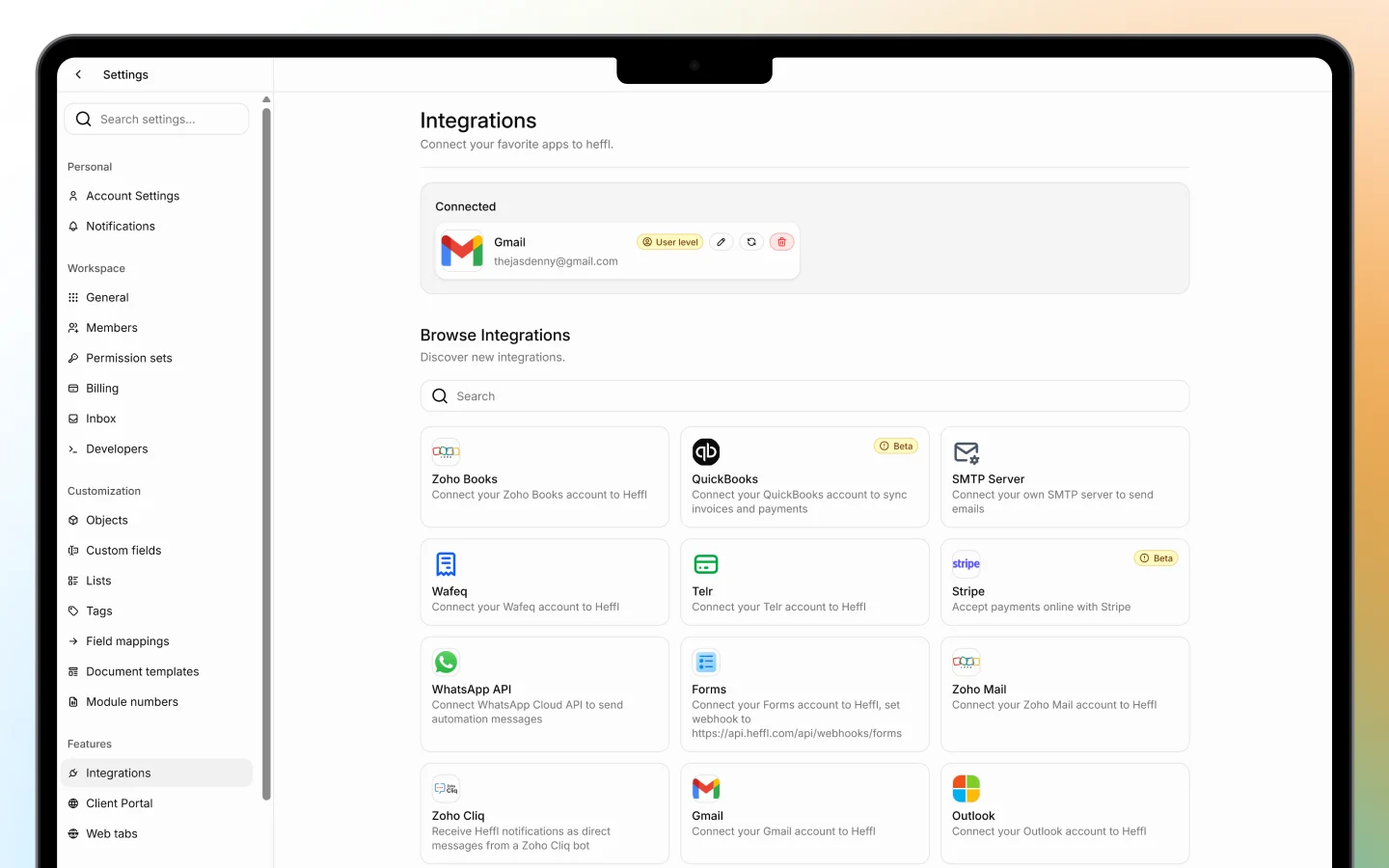
Heffl connects to the tools you already use, so data flows between them instead of being entered twice. You manage everything from **Apps & integrations** in the sidebar. This page lists the available integrations by category and how to connect them.
 ***
## How integrations work
Open **Apps & integrations** to see two areas:
* **Installed apps**, the Heffl modules already part of your workspace (CRM, Sales, Forms, Automations, Files, Field Service, and Purchases)
* **Integrations to connect**, third-party services you can link to Heffl
Use the **Search** box to find an integration quickly.
**What connecting looks like** Each integration opens its own **Connect** dialog. Depending on the service, you will either sign in and authorize Heffl, or enter account details such as an API key or credentials. Some, like Zoho Cliq, set up a bot or notification channel during the connect step. Follow the prompts and confirm to finish. Once connected, the integration moves into your installed apps and its data sync begins.
***
## Email
Connect an email account to send documents and messages from your own address, and bring email into the Inbox.
* **Gmail**, connect your Gmail account
* **Outlook**, connect your Outlook account
* **Zoho Mail**, connect your Zoho Mail account
* **SMTP Server**, connect your own mail server to send emails
***
## Messaging
Bring client conversations into Heffl's Inbox and send messages from automations.
* **WhatsApp API**, connect WhatsApp Cloud API to manage chats and send automation messages
* **Zoho Cliq**, receive Heffl notifications as direct messages from a Zoho Cliq bot
These feed the unified Inbox. See [Inbox: managing conversations](https://docs.heffl.com/inbox-managing-conversations).
***
## Payments
Let clients pay invoices online.
* **Stripe** (Beta), accept payments online with Stripe
* **Telr**, connect your Telr account
Once connected, payment options appear on shared invoices and in the client portal. See [Setting up the client portal](https://docs.heffl.com/setting-up-the-client-portal).
***
## Accounting
Sync your financial records to avoid double entry.
* **Zoho Books**, connect your Zoho Books account
* **Wafeq**, connect your Wafeq account
***
## Scheduling and booking
Sync meetings and bookings to your Heffl contacts.
* **Google Calendar**, see and update Google Calendar events directly in Heffl
* **Calendly**, sync Calendly bookings to Heffl contacts
* **TidyCal**, sync TidyCal bookings to Heffl contacts
* **LunaCal**, sync LunaCal bookings automatically when someone books through your LunaCal scheduling page
* [**Cal.com**](http://Cal.com), sync [Cal.com](http://Cal.com) bookings to Heffl contacts (coming soon)
***
## Meeting notes
* **Fathom**, connect Fathom AI to sync meeting notes, summaries, and action items into Heffl
***
## Forms
* **Forms**, connect your Forms account and set a webhook so form submissions flow into your workspace. See [Creating and sharing forms](https://docs.heffl.com/creating-and-sharing-forms).
***
## Disconnecting an integration
To disconnect, return to **Apps & integrations**, open the integration, and remove it. Disconnecting stops the data sync but does not delete data already in Heffl.
***
## What to do next
1. Connect your [email](https://heffl.com/) to send from your own address
2. Connect [WhatsApp or LinkedIn](https://heffl.com/) to use the Inbox
3. Connect [Stripe or Telr](https://heffl.com/) to accept online payments
***
## How integrations work
Open **Apps & integrations** to see two areas:
* **Installed apps**, the Heffl modules already part of your workspace (CRM, Sales, Forms, Automations, Files, Field Service, and Purchases)
* **Integrations to connect**, third-party services you can link to Heffl
Use the **Search** box to find an integration quickly.
**What connecting looks like** Each integration opens its own **Connect** dialog. Depending on the service, you will either sign in and authorize Heffl, or enter account details such as an API key or credentials. Some, like Zoho Cliq, set up a bot or notification channel during the connect step. Follow the prompts and confirm to finish. Once connected, the integration moves into your installed apps and its data sync begins.
***
## Email
Connect an email account to send documents and messages from your own address, and bring email into the Inbox.
* **Gmail**, connect your Gmail account
* **Outlook**, connect your Outlook account
* **Zoho Mail**, connect your Zoho Mail account
* **SMTP Server**, connect your own mail server to send emails
***
## Messaging
Bring client conversations into Heffl's Inbox and send messages from automations.
* **WhatsApp API**, connect WhatsApp Cloud API to manage chats and send automation messages
* **Zoho Cliq**, receive Heffl notifications as direct messages from a Zoho Cliq bot
These feed the unified Inbox. See [Inbox: managing conversations](https://docs.heffl.com/inbox-managing-conversations).
***
## Payments
Let clients pay invoices online.
* **Stripe** (Beta), accept payments online with Stripe
* **Telr**, connect your Telr account
Once connected, payment options appear on shared invoices and in the client portal. See [Setting up the client portal](https://docs.heffl.com/setting-up-the-client-portal).
***
## Accounting
Sync your financial records to avoid double entry.
* **Zoho Books**, connect your Zoho Books account
* **Wafeq**, connect your Wafeq account
***
## Scheduling and booking
Sync meetings and bookings to your Heffl contacts.
* **Google Calendar**, see and update Google Calendar events directly in Heffl
* **Calendly**, sync Calendly bookings to Heffl contacts
* **TidyCal**, sync TidyCal bookings to Heffl contacts
* **LunaCal**, sync LunaCal bookings automatically when someone books through your LunaCal scheduling page
* [**Cal.com**](http://Cal.com), sync [Cal.com](http://Cal.com) bookings to Heffl contacts (coming soon)
***
## Meeting notes
* **Fathom**, connect Fathom AI to sync meeting notes, summaries, and action items into Heffl
***
## Forms
* **Forms**, connect your Forms account and set a webhook so form submissions flow into your workspace. See [Creating and sharing forms](https://docs.heffl.com/creating-and-sharing-forms).
***
## Disconnecting an integration
To disconnect, return to **Apps & integrations**, open the integration, and remove it. Disconnecting stops the data sync but does not delete data already in Heffl.
***
## What to do next
1. Connect your [email](https://heffl.com/) to send from your own address
2. Connect [WhatsApp or LinkedIn](https://heffl.com/) to use the Inbox
3. Connect [Stripe or Telr](https://heffl.com/) to accept online payments