> ## Documentation Index
> Fetch the complete documentation index at: https://docs.heffl.com/llms.txt
> Use this file to discover all available pages before exploring further.
# Modules in Heffl: quick overview
Heffl is built around a modular system. You activate the features your business needs and add more as you grow, with each module designed to work alongside the others. This page introduces the main modules and how they connect.
***
## Core modules
These are the modules that power most businesses on Heffl.
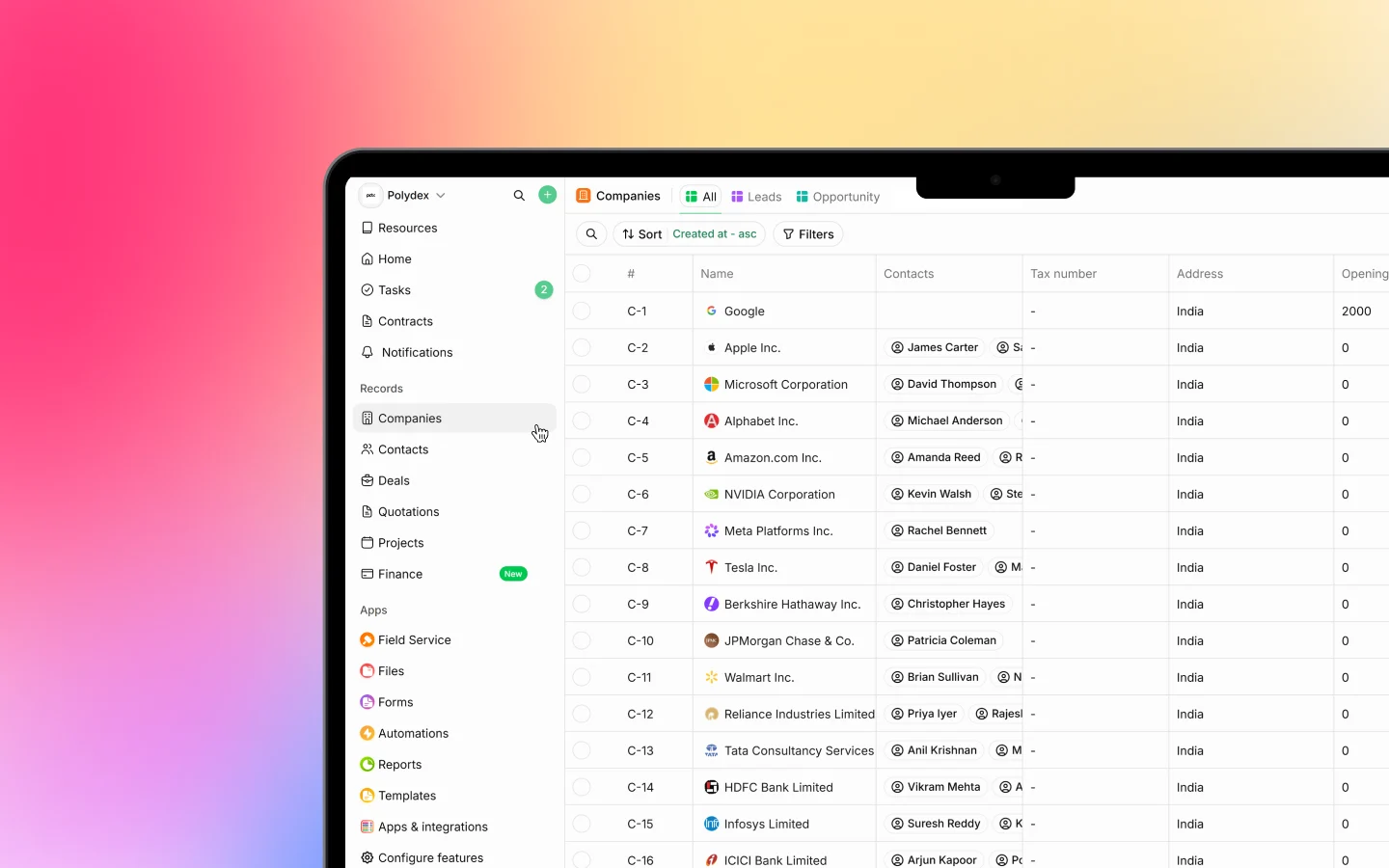
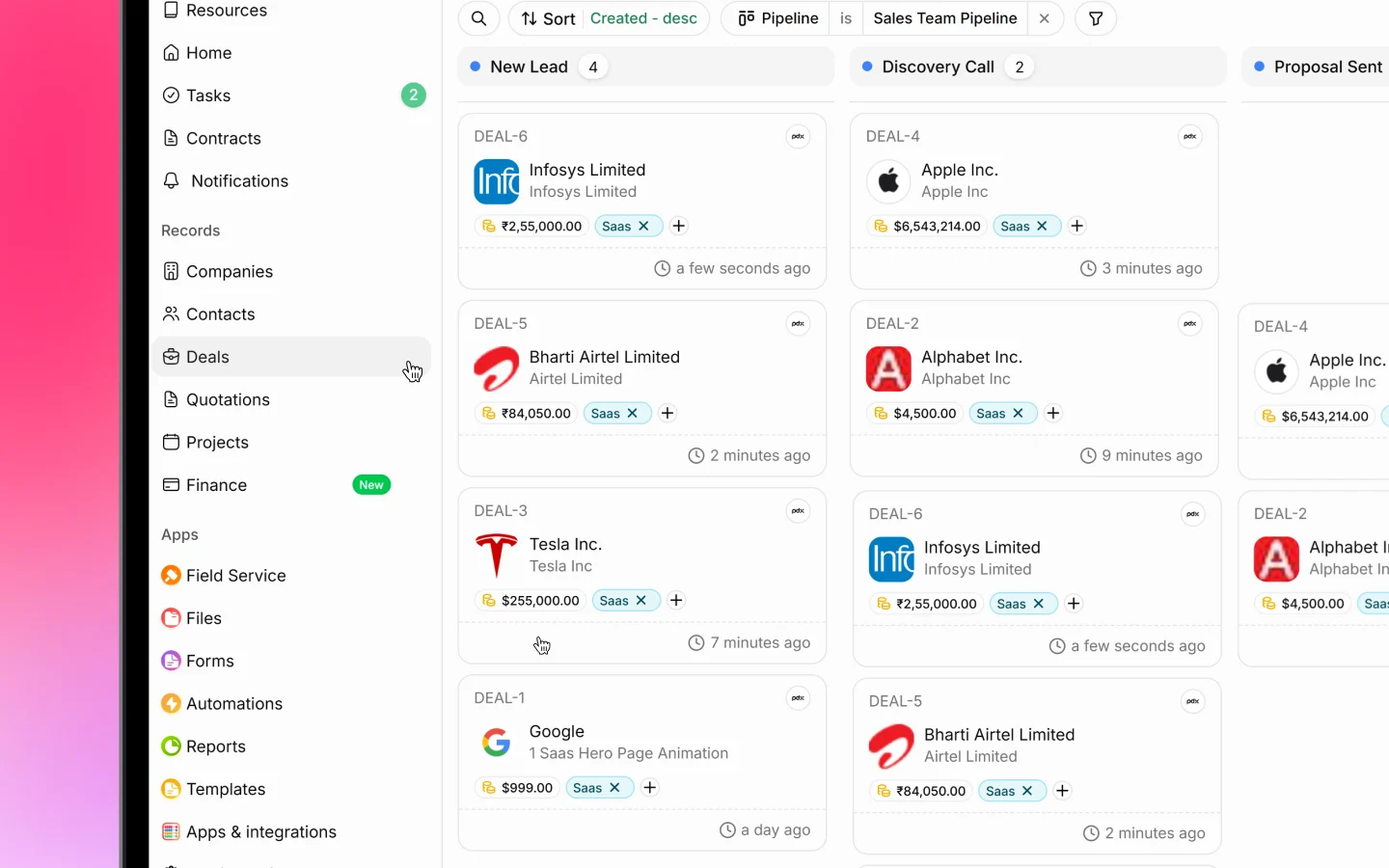
### CRM (Customer Relationship Management)
Manage your customer relationships from first contact to long-term client, tracking every interaction so no follow-up is missed.
* **Leads**: capture and track potential customers
* **Deals**: manage your sales pipeline through visual stages
* **Companies and Contacts**: store complete client information and history
* **Dashboard**: view key metrics and activity
Best for sales, business development, and customer service.
 ### Sales and Finance
Handle everything from quotes to payments, creating professional documents in minutes and tracking each transaction.
* **Quotations**: create and send professional quotes
* **Invoices** and **Proforma**: bill clients and track payment status
* **Payments**: record receipts and manage outstanding balances
* **Products**: maintain your catalog of products and services
* **Recurring invoices**: bill on a schedule automatically
Best for billing, collections, and financial tracking.
### Sales and Finance
Handle everything from quotes to payments, creating professional documents in minutes and tracking each transaction.
* **Quotations**: create and send professional quotes
* **Invoices** and **Proforma**: bill clients and track payment status
* **Payments**: record receipts and manage outstanding balances
* **Products**: maintain your catalog of products and services
* **Recurring invoices**: bill on a schedule automatically
Best for billing, collections, and financial tracking.
 ### Projects
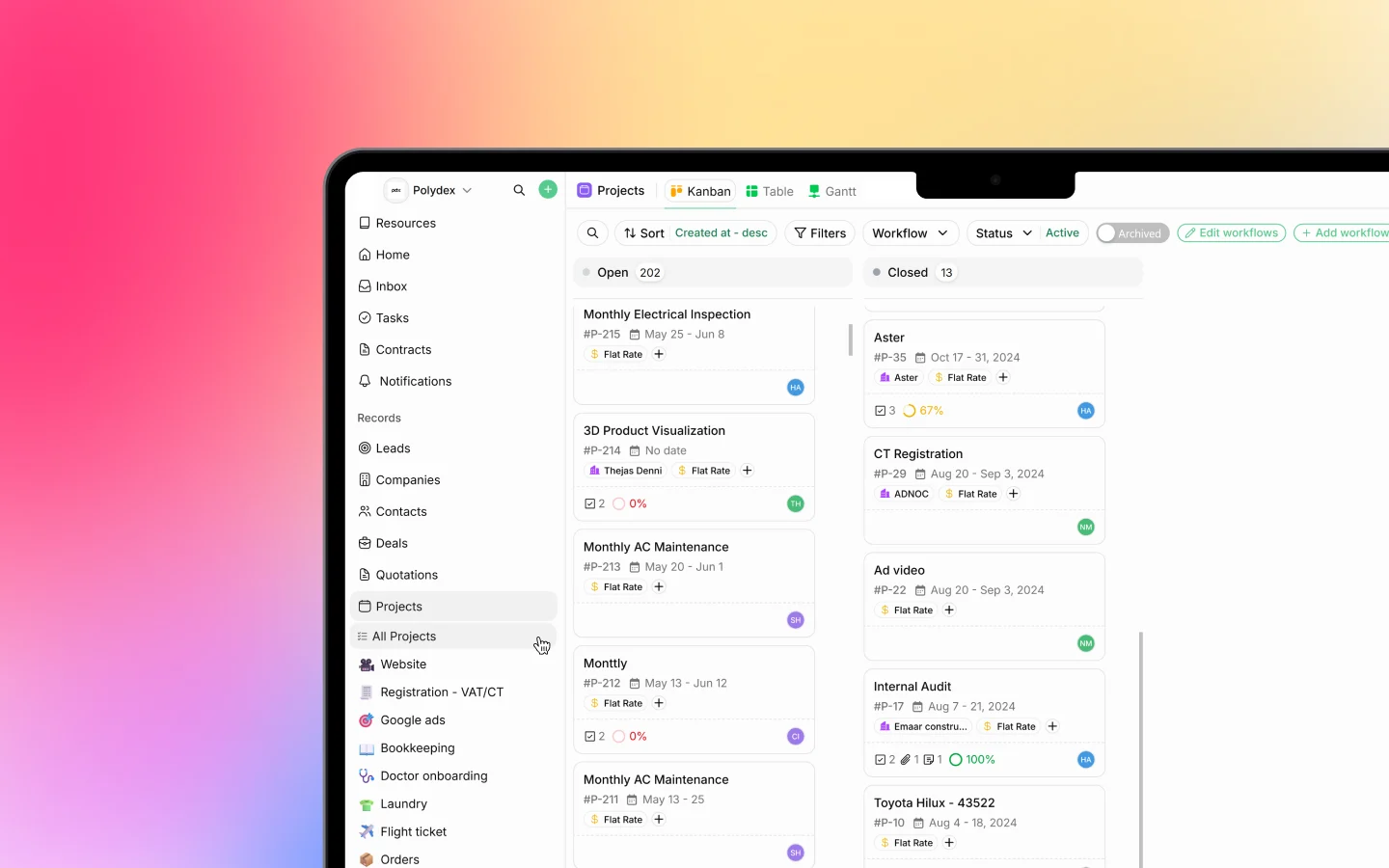
Organize work into projects and track tasks from start to finish.
* **Tasks**: create, assign, and track the work
* **Board, table, and Gantt views**: see projects by status or on a timeline
* **Timesheets**: log hours, billable or non-billable
* **Recurring projects**: regenerate repeating work automatically
Best for project managers, service delivery teams, and agencies.
### Projects
Organize work into projects and track tasks from start to finish.
* **Tasks**: create, assign, and track the work
* **Board, table, and Gantt views**: see projects by status or on a timeline
* **Timesheets**: log hours, billable or non-billable
* **Recurring projects**: regenerate repeating work automatically
Best for project managers, service delivery teams, and agencies.
 ***
## Supporting features
Alongside the core modules, these work across all your modules rather than standing alone:
* **Forms**: capture information from clients or your team
* **Automations**: trigger actions automatically
* **Files**: store and share documents
* **Wiki**: keep internal notes and guides
* **Inbox**: handle WhatsApp, LinkedIn, and email in one place
* **Reports** and **Templates**: analyze data and reuse document designs
* **Client Portal**: give clients a space to view and pay
***
## How modules work together
The real value comes from how the modules connect into end-to-end workflows.
### **Lead to invoice**
* Capture a lead in CRM
* Convert it to a deal when interest is shown
* Create a quote in Sales
* Convert the accepted quote into an invoice
* Record payments until it is fully paid
### **Project to billing**
* Create a project in Projects
* Track tasks and log time as work progresses
* Invoice the client with billable time included
* Record payments against the work
***
## Choosing your modules
During onboarding you select which features to activate, and you can adjust them later.
* Start from a **bundle** suited to a business type, for example CRM with Sales, or Field Service with CRM, Sales, and Purchases
* Or activate **individual modules** to match specific needs
* If a feature you expect is missing, an admin can enable it.
***
## Default features
Some things are in every workspace by default:
* **Settings**: configure your workspace and preferences
* **Templates**: access and manage document templates
* **Team management**: owners and admins invite and manage members
See [Workspace and organization settings](https://docs.heffl.com/workspace-and-organization-settings) and [Inviting your team members](https://docs.heffl.com/getting-started/untitled-page-2).
***
## Accessing your modules
Once active, reach your modules from:
* The **sidebar** on the left
* The **Apps** page, which shows active modules as cards
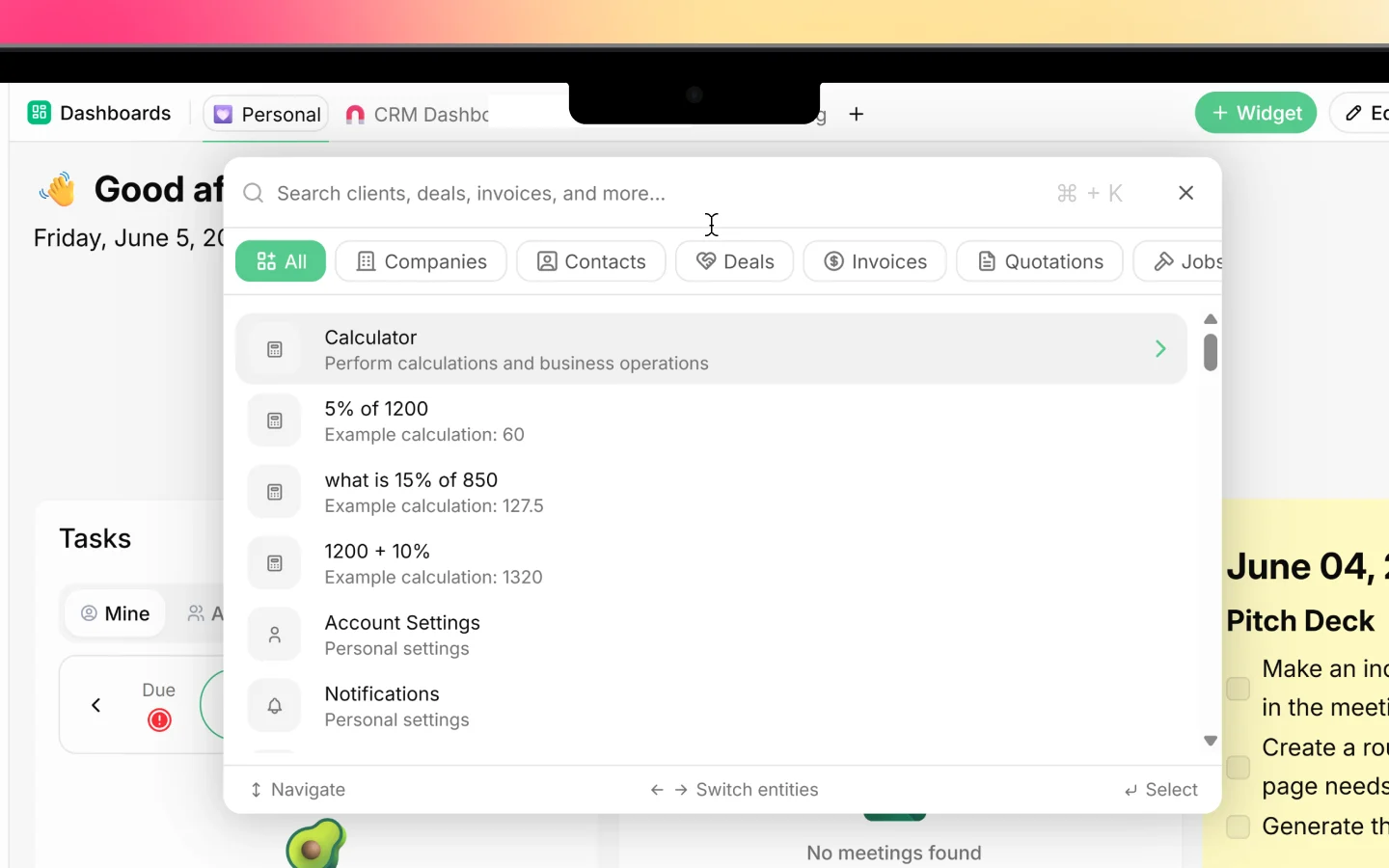
* The **global search** bar for quick access
***
## Supporting features
Alongside the core modules, these work across all your modules rather than standing alone:
* **Forms**: capture information from clients or your team
* **Automations**: trigger actions automatically
* **Files**: store and share documents
* **Wiki**: keep internal notes and guides
* **Inbox**: handle WhatsApp, LinkedIn, and email in one place
* **Reports** and **Templates**: analyze data and reuse document designs
* **Client Portal**: give clients a space to view and pay
***
## How modules work together
The real value comes from how the modules connect into end-to-end workflows.
### **Lead to invoice**
* Capture a lead in CRM
* Convert it to a deal when interest is shown
* Create a quote in Sales
* Convert the accepted quote into an invoice
* Record payments until it is fully paid
### **Project to billing**
* Create a project in Projects
* Track tasks and log time as work progresses
* Invoice the client with billable time included
* Record payments against the work
***
## Choosing your modules
During onboarding you select which features to activate, and you can adjust them later.
* Start from a **bundle** suited to a business type, for example CRM with Sales, or Field Service with CRM, Sales, and Purchases
* Or activate **individual modules** to match specific needs
* If a feature you expect is missing, an admin can enable it.
***
## Default features
Some things are in every workspace by default:
* **Settings**: configure your workspace and preferences
* **Templates**: access and manage document templates
* **Team management**: owners and admins invite and manage members
See [Workspace and organization settings](https://docs.heffl.com/workspace-and-organization-settings) and [Inviting your team members](https://docs.heffl.com/getting-started/untitled-page-2).
***
## Accessing your modules
Once active, reach your modules from:
* The **sidebar** on the left
* The **Apps** page, which shows active modules as cards
* The **global search** bar for quick access
 ***
## What to do next
1. [Set up your workspace](https://docs.heffl.com/getting-started/untitled-page-1) and activate your modules
2. Read [How Heffl is organized](https://app.mintlify.com/heffl/heffl/editor/Thejas/~/82a3fe2b-502b-418f-ae00-afa5e487ba4b) to see how everything fits
3. Follow the [quick start guide](https://docs.heffl.com/getting-started/quick-start-guide-5-minute-setup) to get going
***
## What to do next
1. [Set up your workspace](https://docs.heffl.com/getting-started/untitled-page-1) and activate your modules
2. Read [How Heffl is organized](https://app.mintlify.com/heffl/heffl/editor/Thejas/~/82a3fe2b-502b-418f-ae00-afa5e487ba4b) to see how everything fits
3. Follow the [quick start guide](https://docs.heffl.com/getting-started/quick-start-guide-5-minute-setup) to get going