> ## Documentation Index
> Fetch the complete documentation index at: https://docs.heffl.com/llms.txt
> Use this file to discover all available pages before exploring further.
# Filtering and sorting leads
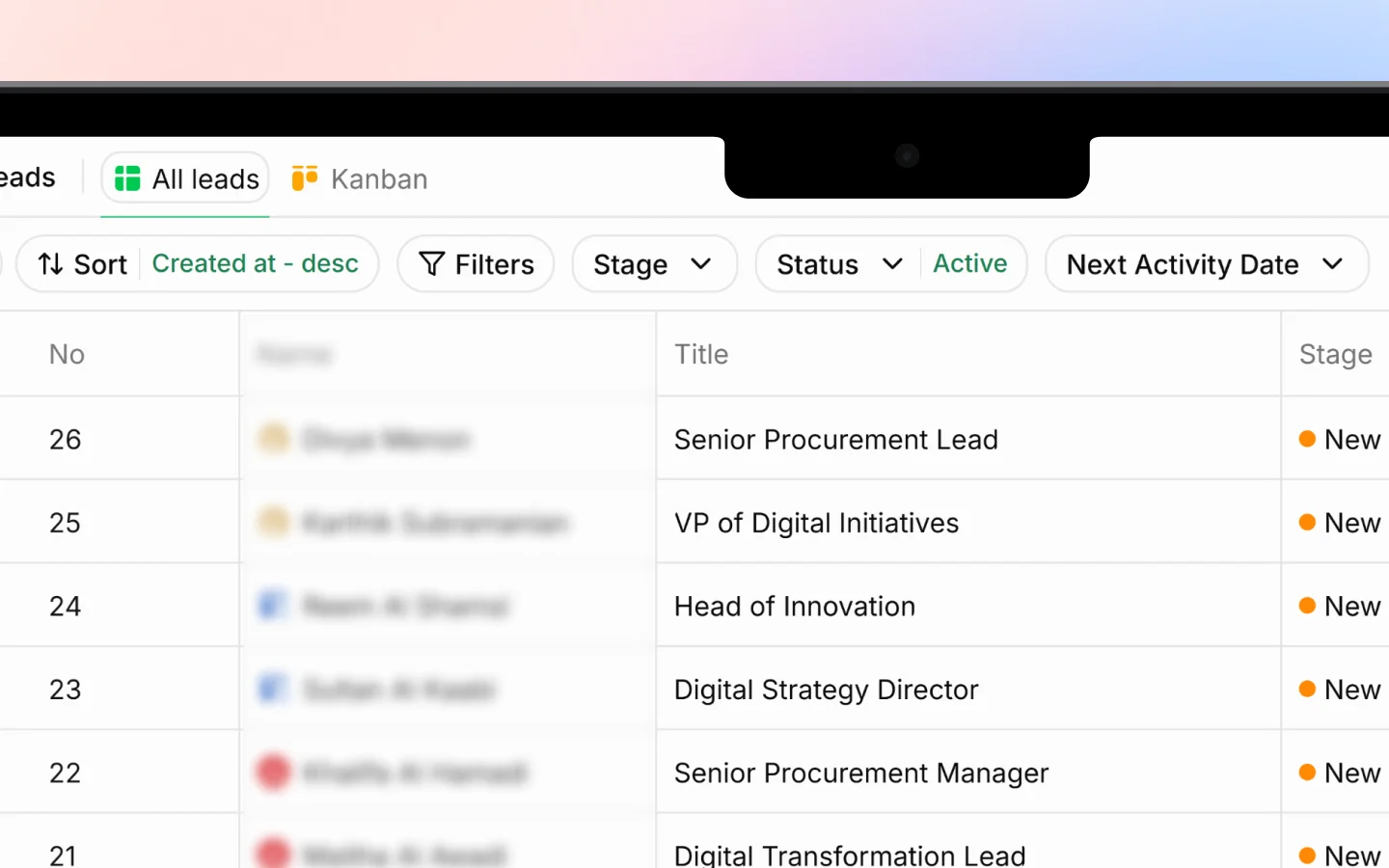
When your lead list grows, filtering and sorting help you focus on what matters. This guide covers every filter and sort option on the Leads page. All of these work in both list view and Kanban view, and they apply together, so you can stack filters and sorting to narrow down precisely.
 ***
## Sorting leads
Click **Sort** in the toolbar to choose how your leads are ordered. You pick a field and a direction.
### **Sort by**
* **Created at** orders by when the lead was added (the default)
* **Name** orders alphabetically
* **Value** orders by estimated deal value
### **Direction**
* **Ascending** goes from low to high, oldest to newest, or A to Z
* **Descending** goes from high to low, newest to oldest, or Z to A
The current sort shows in the toolbar, for example "Created at - desc", so you always know how the list is ordered.
***
## Filtering by stage
Click **Stage** to show only leads at certain points in your pipeline. Tick one or more stages:
* New
* Followed up
* Contacted
* Demo Done
* Unqualified
* Junk
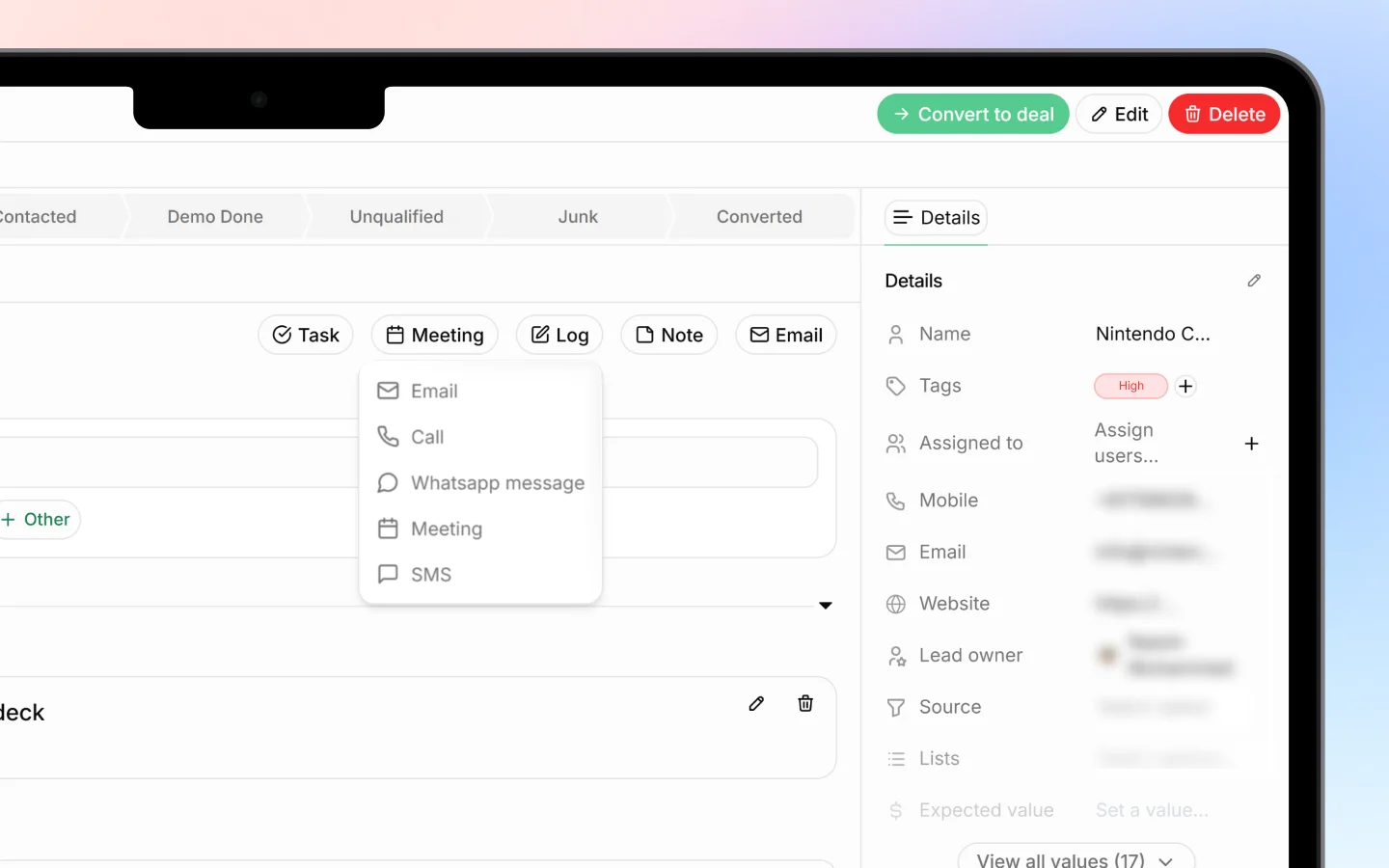
* Converted
Tick several to see them together, or click **Clear** to remove the stage filter. Use the search box inside the dropdown to find a stage quickly if you have many.
***
## Filtering by status
Click **Status** to switch between:
* **Active** shows your live leads (the default)
* **Archived** shows leads you have archived but not deleted
Archived leads are hidden from the default view, so use this filter when you need to find one again.
***
## Filtering by next activity date
Click **Next Activity Date** to focus on leads that need attention within a time window:
* **Today**
* **Tomorrow**
* **Next 7 Days**
* **Next 30 Days**
* **Custom** for a specific date range you choose
This is the best filter for planning your day or week, since it surfaces the leads with follow-ups coming due. Click **Clear** to remove it.
***
## More filters
Click **Filters** for additional ways to narrow your leads:
* **Created at** filters by when leads were added
* **List** filters by a saved list the lead belongs to
* **Assigned to** filters by the team member assigned
* **Owners** filters by lead owner
* **Sources** filters by where the lead came from
* **Lost Reasons** filters leads marked unqualified by their reason
Use the search box at the top of the Filters panel to find an option quickly.
***
## Searching
For finding one specific lead rather than a group, use the **search** icon in the toolbar. Search matches the lead's name and other key details, and works alongside any filters you have applied.
***
## Sorting leads
Click **Sort** in the toolbar to choose how your leads are ordered. You pick a field and a direction.
### **Sort by**
* **Created at** orders by when the lead was added (the default)
* **Name** orders alphabetically
* **Value** orders by estimated deal value
### **Direction**
* **Ascending** goes from low to high, oldest to newest, or A to Z
* **Descending** goes from high to low, newest to oldest, or Z to A
The current sort shows in the toolbar, for example "Created at - desc", so you always know how the list is ordered.
***
## Filtering by stage
Click **Stage** to show only leads at certain points in your pipeline. Tick one or more stages:
* New
* Followed up
* Contacted
* Demo Done
* Unqualified
* Junk
* Converted
Tick several to see them together, or click **Clear** to remove the stage filter. Use the search box inside the dropdown to find a stage quickly if you have many.
***
## Filtering by status
Click **Status** to switch between:
* **Active** shows your live leads (the default)
* **Archived** shows leads you have archived but not deleted
Archived leads are hidden from the default view, so use this filter when you need to find one again.
***
## Filtering by next activity date
Click **Next Activity Date** to focus on leads that need attention within a time window:
* **Today**
* **Tomorrow**
* **Next 7 Days**
* **Next 30 Days**
* **Custom** for a specific date range you choose
This is the best filter for planning your day or week, since it surfaces the leads with follow-ups coming due. Click **Clear** to remove it.
***
## More filters
Click **Filters** for additional ways to narrow your leads:
* **Created at** filters by when leads were added
* **List** filters by a saved list the lead belongs to
* **Assigned to** filters by the team member assigned
* **Owners** filters by lead owner
* **Sources** filters by where the lead came from
* **Lost Reasons** filters leads marked unqualified by their reason
Use the search box at the top of the Filters panel to find an option quickly.
***
## Searching
For finding one specific lead rather than a group, use the **search** icon in the toolbar. Search matches the lead's name and other key details, and works alongside any filters you have applied.
 ***
## Combining filters and sorting
Filters and sorting stack. For example, you can:
* Filter to **Stage: Contacted** and **Next Activity Date: Next 7 Days**, then **Sort by Value, Descending**, to see your highest-value contacted leads needing follow-up this week.
Because these controls carry over when you [switch between list and Kanban view](https://docs.heffl.com/switching-between-list-view-and-kanban-view), you can set up your filters once and view the results either way.
***
## Clearing filters
Each filter dropdown has its own **Clear** option to remove just that filter. Remove filters one at a time to widen your view gradually, or clear them all to return to your full lead list.
***
## What to do next
1. Save a group of leads as a [List](https://app.mintlify.com/heffl/heffl/editor/Thejas/~/c57ab4bf-6da5-47e1-86ee-f35998963ed4) for quick repeat access
2. [Add notes and tags](https://docs.heffl.com/adding-notes-and-tags-to-a-lead) to organize leads further
3. Convert qualified leads into [deals](https://docs.heffl.com/adding-and-managing-deals)
***
## Combining filters and sorting
Filters and sorting stack. For example, you can:
* Filter to **Stage: Contacted** and **Next Activity Date: Next 7 Days**, then **Sort by Value, Descending**, to see your highest-value contacted leads needing follow-up this week.
Because these controls carry over when you [switch between list and Kanban view](https://docs.heffl.com/switching-between-list-view-and-kanban-view), you can set up your filters once and view the results either way.
***
## Clearing filters
Each filter dropdown has its own **Clear** option to remove just that filter. Remove filters one at a time to widen your view gradually, or clear them all to return to your full lead list.
***
## What to do next
1. Save a group of leads as a [List](https://app.mintlify.com/heffl/heffl/editor/Thejas/~/c57ab4bf-6da5-47e1-86ee-f35998963ed4) for quick repeat access
2. [Add notes and tags](https://docs.heffl.com/adding-notes-and-tags-to-a-lead) to organize leads further
3. Convert qualified leads into [deals](https://docs.heffl.com/adding-and-managing-deals)