> ## Documentation Index
> Fetch the complete documentation index at: https://docs.heffl.com/llms.txt
> Use this file to discover all available pages before exploring further.
# Exporting and sharing a quotation
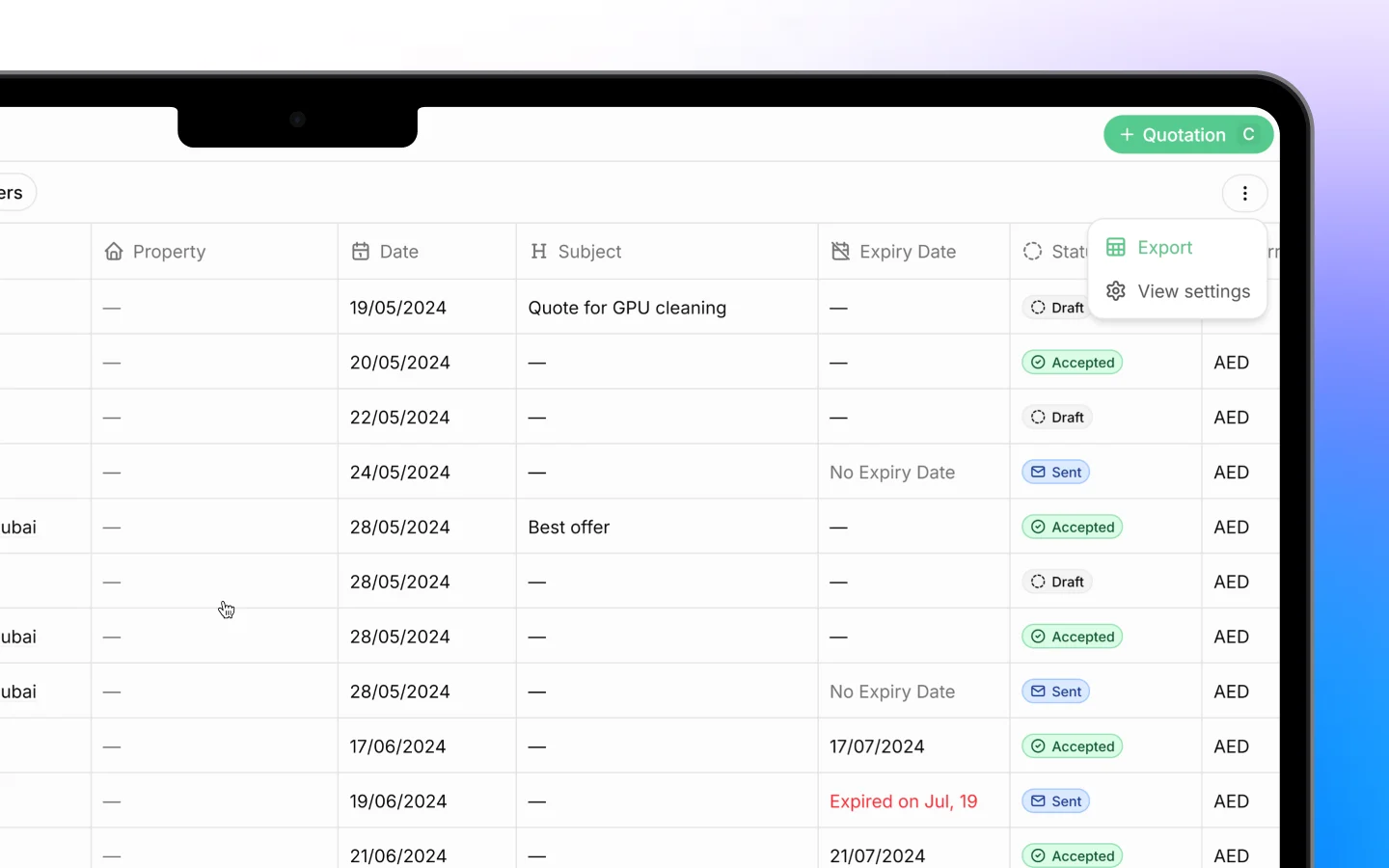
Once a quotation is ready, you can get it out of Heffl in several ways: download it as a PDF, print it, email it to the client, or share a link. This guide covers each option, all found at the top of the quotation detail view.
 ***
## Downloading as a PDF
To save a copy of the quote to your device:
1. Open the quotation from the **Quotations** list
2. Click the **download** icon in the top right
3. The quote saves as a PDF, named after the quote and client (for example, "Quotation QTTS-1027")
The PDF matches the template and preview exactly, including your logo, line items, totals, and terms. Use this when you need a file to keep, attach elsewhere, or archive.
***
## Printing
To print the quote or save it as a PDF through your browser:
1. Click **Print** in the top right
2. Your browser's print dialog opens, showing a preview of the quote
3. Choose your **Destination** (a printer, or "Save as PDF")
4. Set **Pages**, **Layout** (Portrait or Landscape), and **Color** as needed
5. Click **Print**
This is handy when a client wants a physical copy, or when you prefer your browser's PDF output.
***
## Sending by email
To send the quote straight to the client from Heffl:
1. Click **More** in the top right
2. Select **Send via email**
3. Confirm the recipient and message
4. Send
The client receives the quote by email. Sending this way keeps the quote's status accurate (it moves toward Sent) and logs the action in the quote's history.
You can also use **Mark as sent** to record that a quote has been sent if you delivered it another way.
***
## Sharing a link
To give the client a link they can open in a browser:
1. Click **More** in the top right
2. Select **Share a link**
3. Copy the link and send it to the client
A shared link lets the client view the quote online without needing a file attachment. This is the same way quotes appear in the client portal.
***
## Which method to use
Each option suits a different need:
* **Download PDF** when you need a file to keep or attach
* **Print** when you need a paper copy or browser-based PDF
* **Send via email** when you want Heffl to deliver it and track the status
* **Share a link** when the client prefers to view it online
For most cases, sending by email or sharing a link is best, since both keep the quote connected to its record and update its status automatically.
***
## What to do next
1. [Convert an accepted quotation to an invoice](https://docs.heffl.com/invoices-creating-sending-and-statuses)
2. [Track invoices and payment status](https://docs.heffl.com/payments-recording-and-collecting)
3. Set up [products and services](https://docs.heffl.com/managing-products-and-services-catalog) for faster quoting
***
## Downloading as a PDF
To save a copy of the quote to your device:
1. Open the quotation from the **Quotations** list
2. Click the **download** icon in the top right
3. The quote saves as a PDF, named after the quote and client (for example, "Quotation QTTS-1027")
The PDF matches the template and preview exactly, including your logo, line items, totals, and terms. Use this when you need a file to keep, attach elsewhere, or archive.
***
## Printing
To print the quote or save it as a PDF through your browser:
1. Click **Print** in the top right
2. Your browser's print dialog opens, showing a preview of the quote
3. Choose your **Destination** (a printer, or "Save as PDF")
4. Set **Pages**, **Layout** (Portrait or Landscape), and **Color** as needed
5. Click **Print**
This is handy when a client wants a physical copy, or when you prefer your browser's PDF output.
***
## Sending by email
To send the quote straight to the client from Heffl:
1. Click **More** in the top right
2. Select **Send via email**
3. Confirm the recipient and message
4. Send
The client receives the quote by email. Sending this way keeps the quote's status accurate (it moves toward Sent) and logs the action in the quote's history.
You can also use **Mark as sent** to record that a quote has been sent if you delivered it another way.
***
## Sharing a link
To give the client a link they can open in a browser:
1. Click **More** in the top right
2. Select **Share a link**
3. Copy the link and send it to the client
A shared link lets the client view the quote online without needing a file attachment. This is the same way quotes appear in the client portal.
***
## Which method to use
Each option suits a different need:
* **Download PDF** when you need a file to keep or attach
* **Print** when you need a paper copy or browser-based PDF
* **Send via email** when you want Heffl to deliver it and track the status
* **Share a link** when the client prefers to view it online
For most cases, sending by email or sharing a link is best, since both keep the quote connected to its record and update its status automatically.
***
## What to do next
1. [Convert an accepted quotation to an invoice](https://docs.heffl.com/invoices-creating-sending-and-statuses)
2. [Track invoices and payment status](https://docs.heffl.com/payments-recording-and-collecting)
3. Set up [products and services](https://docs.heffl.com/managing-products-and-services-catalog) for faster quoting