> ## Documentation Index
> Fetch the complete documentation index at: https://docs.heffl.com/llms.txt
> Use this file to discover all available pages before exploring further.
# Creating and sending quotations
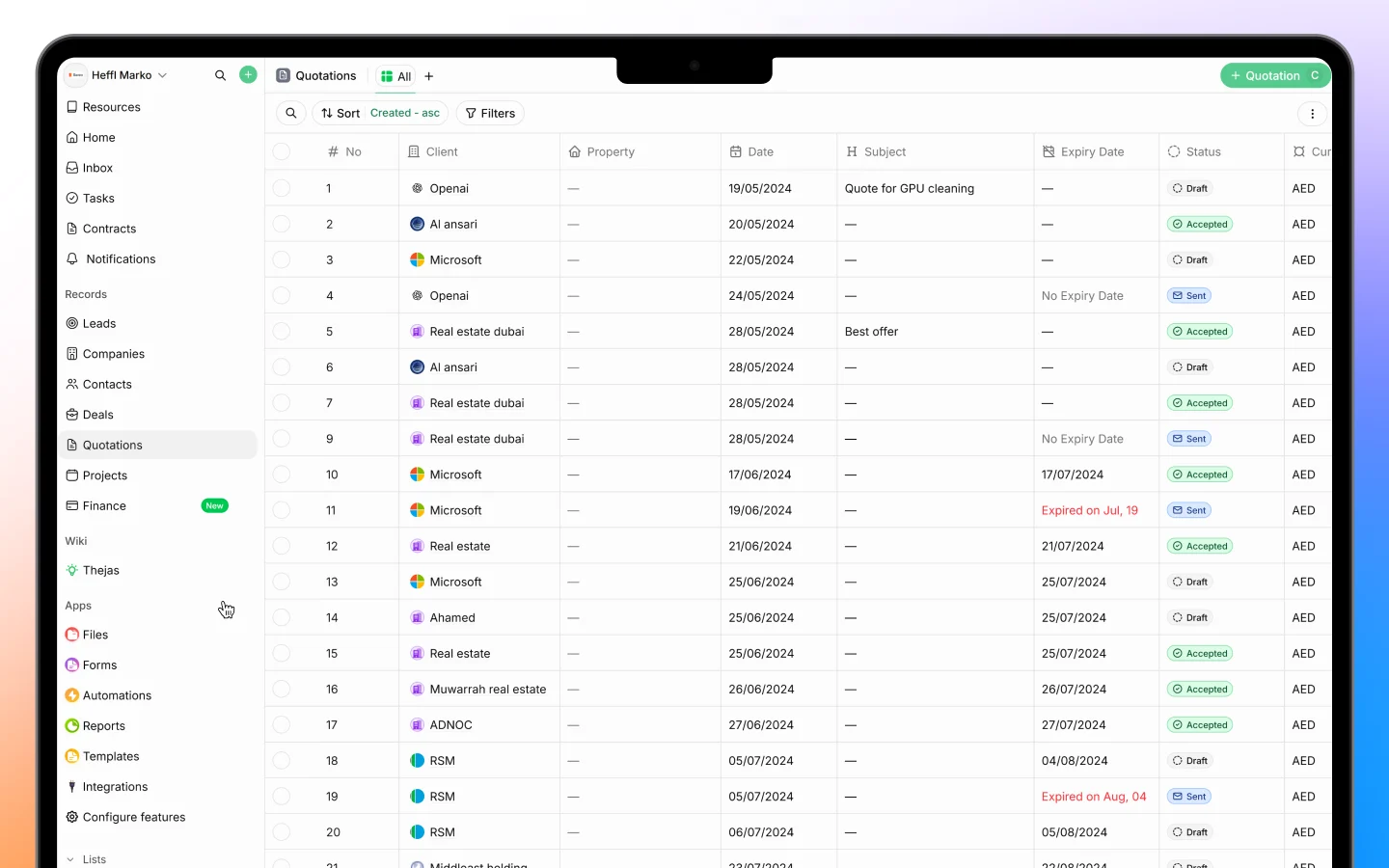
Quotations are the professional quotes you send to clients. Heffl lets you build one in minutes from a template, add line items and pricing, and send it for the client to accept. You will find Quotations in the sidebar (under Finance). This guide covers creating, building, and sending a quote.
 ***
## Creating a quotation
1. Go to **Quotations** in the sidebar
2. Click **+ Quotation** in the top right (or press **C**)
3. Choose a template (see below)
4. Fill in the quote details
5. Add your line items
6. Save and send
***
## Choosing a template
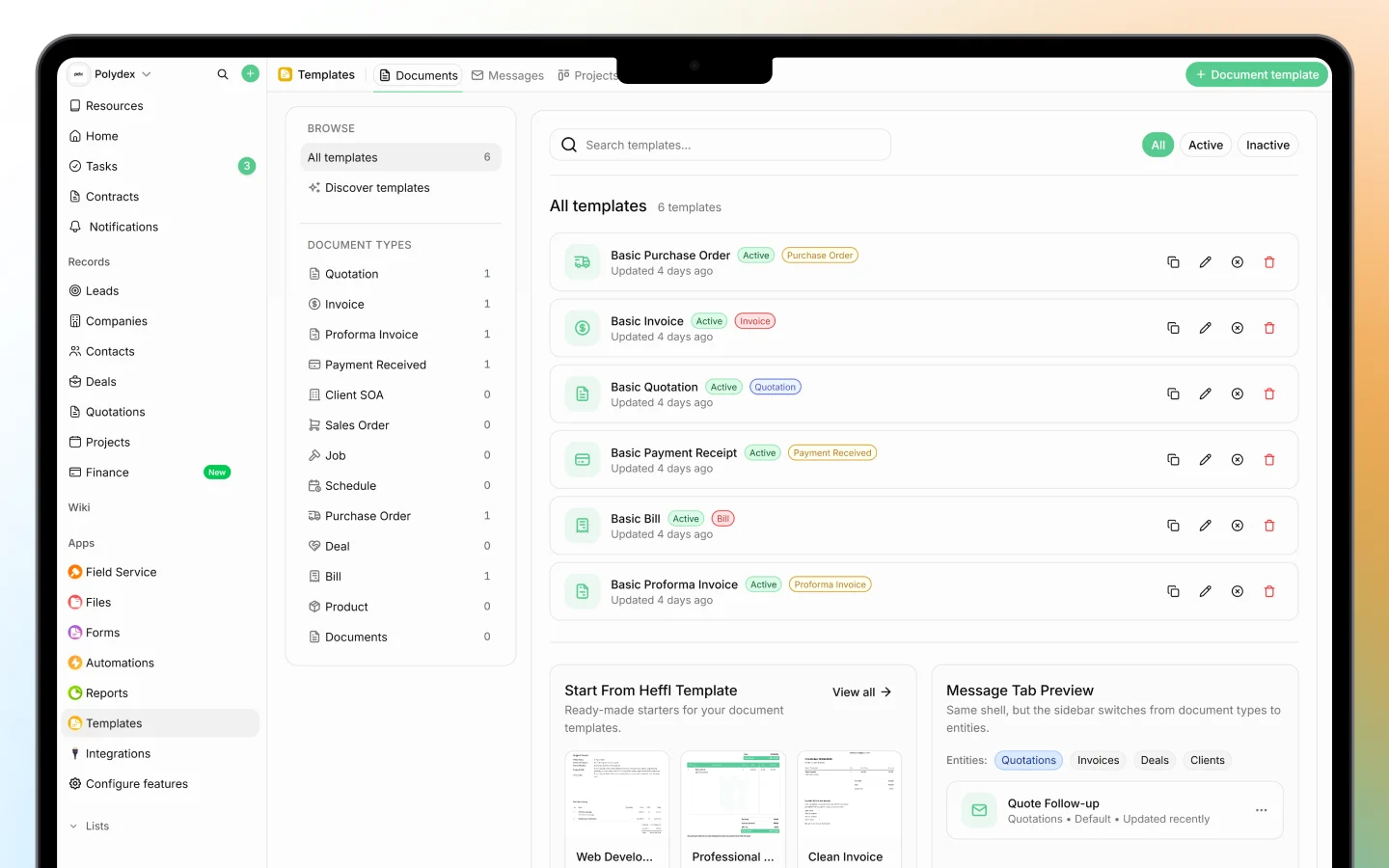
When you start a quote, Heffl opens the **Select a Template** window with two tabs:
* **My templates** are the templates saved in your workspace, plus a **Create from Scratch** option for a blank quote
* **Discover templates** are ready-made designs you can use, such as Web Development Quote, Business Proposal, and Service Quotation
Pick a template to start with its layout and styling, or create from scratch for a blank document. Using a template saves time and keeps your quotes consistent and branded.
***
## Creating a quotation
1. Go to **Quotations** in the sidebar
2. Click **+ Quotation** in the top right (or press **C**)
3. Choose a template (see below)
4. Fill in the quote details
5. Add your line items
6. Save and send
***
## Choosing a template
When you start a quote, Heffl opens the **Select a Template** window with two tabs:
* **My templates** are the templates saved in your workspace, plus a **Create from Scratch** option for a blank quote
* **Discover templates** are ready-made designs you can use, such as Web Development Quote, Business Proposal, and Service Quotation
Pick a template to start with its layout and styling, or create from scratch for a blank document. Using a template saves time and keeps your quotes consistent and branded.
 ***
## Filling in the quote details
At the top of the quote, set the key fields:
* **Template** and **Currency**
* **Date** and **Expiry date** (how long the quote is valid)
* **Tags** and **Sales person**
* **Client**, the company or contact the quote is for
* **Property**, **Contact**, and **Deal** to link the quote to related records
* **Subject**, a short description of the quote
Linking the quote to a client, contact, and deal keeps it connected to the rest of your records and pulls the right details automatically.
***
## Adding line items
The body of the quote is built from line items, the products or services you are quoting for. For each line you can set:
* **Item**, typed or selected from your product catalog
* **Description**
* **Qty** (quantity)
* **Rate** and **Discount**
* **Tax**, such as 5% standard
* **Amount**, calculated automatically
Use the buttons below the table to build the quote:
* **Line item** adds a product or service row
* **Heading** adds a section title to group items
* **Bundle** adds a predefined group of items
You can also set whether **Amounts are** inclusive or exclusive of tax. The **Subtotal**, **Tax**, and **Total** calculate automatically at the bottom as you add items.
To pull from your catalog, use **Add product**. See [Managing products and services (catalog)](https://docs.heffl.com/managing-products-and-services-catalog).
***
## Form and content views
At the top right, switch between:
* **Form**, where you enter the structured quote data (client, line items, totals)
* **Content**, where you edit the document's written content and layout
Use **Notes** to add internal notes, and **Settings** to adjust quote options.
***
## Saving and sending
Click **Save Draft** (or press **Ctrl + Enter**) to save the quote as a draft. When ready, send it to the client by email or share it through the client portal.
A quote moves through statuses you can track from the Quotations list: **Draft**, **Sent**, **Accepted**, and **Expired**. The list shows each quote's number, client, date, expiry, status, currency, subtotal, total, sales person, and creator.
***
## After the quote is accepted
Once a client accepts, convert the quote into an invoice in one click so you can collect payment. See [Invoices: creating, sending, and statuses](https://docs.heffl.com/invoices-creating-sending-and-statuses).
***
## What to do next
1. [Manage quotation line items and pricing](https://heffl.com/) in detail
2. [Convert an accepted quotation to an invoice](https://heffl.com/)
3. Set up your [products and services](https://heffl.com/) catalog for faster quoting
***
## Filling in the quote details
At the top of the quote, set the key fields:
* **Template** and **Currency**
* **Date** and **Expiry date** (how long the quote is valid)
* **Tags** and **Sales person**
* **Client**, the company or contact the quote is for
* **Property**, **Contact**, and **Deal** to link the quote to related records
* **Subject**, a short description of the quote
Linking the quote to a client, contact, and deal keeps it connected to the rest of your records and pulls the right details automatically.
***
## Adding line items
The body of the quote is built from line items, the products or services you are quoting for. For each line you can set:
* **Item**, typed or selected from your product catalog
* **Description**
* **Qty** (quantity)
* **Rate** and **Discount**
* **Tax**, such as 5% standard
* **Amount**, calculated automatically
Use the buttons below the table to build the quote:
* **Line item** adds a product or service row
* **Heading** adds a section title to group items
* **Bundle** adds a predefined group of items
You can also set whether **Amounts are** inclusive or exclusive of tax. The **Subtotal**, **Tax**, and **Total** calculate automatically at the bottom as you add items.
To pull from your catalog, use **Add product**. See [Managing products and services (catalog)](https://docs.heffl.com/managing-products-and-services-catalog).
***
## Form and content views
At the top right, switch between:
* **Form**, where you enter the structured quote data (client, line items, totals)
* **Content**, where you edit the document's written content and layout
Use **Notes** to add internal notes, and **Settings** to adjust quote options.
***
## Saving and sending
Click **Save Draft** (or press **Ctrl + Enter**) to save the quote as a draft. When ready, send it to the client by email or share it through the client portal.
A quote moves through statuses you can track from the Quotations list: **Draft**, **Sent**, **Accepted**, and **Expired**. The list shows each quote's number, client, date, expiry, status, currency, subtotal, total, sales person, and creator.
***
## After the quote is accepted
Once a client accepts, convert the quote into an invoice in one click so you can collect payment. See [Invoices: creating, sending, and statuses](https://docs.heffl.com/invoices-creating-sending-and-statuses).
***
## What to do next
1. [Manage quotation line items and pricing](https://heffl.com/) in detail
2. [Convert an accepted quotation to an invoice](https://heffl.com/)
3. Set up your [products and services](https://heffl.com/) catalog for faster quoting