> ## Documentation Index
> Fetch the complete documentation index at: https://docs.heffl.com/llms.txt
> Use this file to discover all available pages before exploring further.
# Creating and managing projects
This guide covers creating a project, setting it up, and managing it through to completion. For an overview of how projects, pipelines, and views work, see [Introduction to project management in Heffl](https://docs.heffl.com/introduction-to-project-management-in-heffl).
***
### Creating a project
1. Go to **Projects** in the sidebar
2. Click **+ Project** in the top right (or press **C**)
3. **Choose a pipeline** for the type of work (Website, Bookkeeping, Construction, and so on). Each pipeline has its own stages.
4. **Pick a template or start blank**:
* **Continue blank** starts a fresh project with no preset tasks
* **Use template** starts from a saved template that pre-fills tasks and items (the card shows how many tasks and items it includes)
5. Fill in the project details
6. Save
You can also add a new template from this screen with **Add template**, or edit an existing one before using it.
 ***
### Creating a project from a deal
When a deal is won and work needs delivering, open the deal and click **Convert to Project**. The deal's client and details carry into the new project, so you do not re-enter them. See [Working with the deals pipeline](https://heffl.com/).
***
### Setting up the project
When creating or editing a project, set these details:
* **File title** or project name
* **Description**, a brief or notes about the work
* **Stage**, the starting point in the pipeline (such as Discovery)
* **Assignees** and **project lead**
* **Start date** and **End date**
* **Client**
* **Tags**
* **Budgeted hours**, the time you expect the project to take
* **Line items**, the products or services tied to the project
* **Billing type**, such as Flat Rate
A clear title, client, dates, and budgeted hours give you the foundation to track the project accurately.
***
### Viewing and finding projects
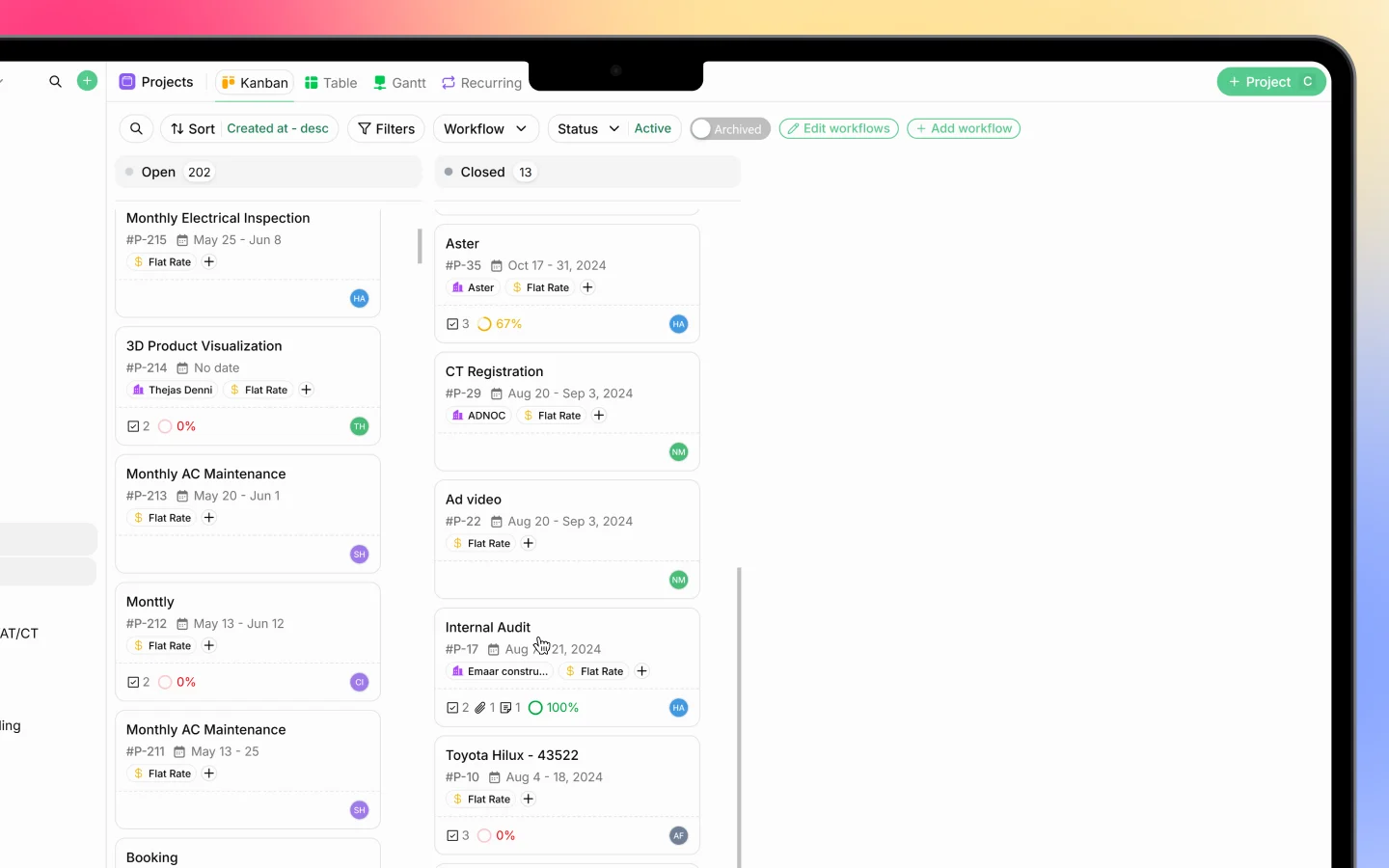
Switch views from the tabs at the top depending on what you need: **Kanban** for a status board, **Table** for a detailed list, and **Gantt** for a timeline. See the [introduction](https://heffl.com/) for what each view shows.
To find projects, use the toolbar:
* **Sort** orders by created date and other fields
* **Filters** narrows the list
* **Workflow** filters to a specific pipeline
* **Status** switches between Active and Archived
* **Search** finds a project by name
You can also create or edit pipelines from here using **Add workflow** and **Edit workflows**.
***
### Managing a project
Open a project to manage it. From the detail view you can:
* Move it through **stages** as work progresses
* Add and assign **tasks**. See [Breaking projects into tasks](https://docs.heffl.com/breaking-projects-into-tasks)
* Log **timesheets** against it. See [Logging timesheets and tracking hours](https://docs.heffl.com/logging-timesheets-and-tracking-hours)
* Attach **files** and briefs
* Update **details** such as dates, assignees, and budgeted hours
* Track **progress**, shown as a percentage based on completed tasks
***
### Moving a project through stages
Advance a project as the work moves forward:
* On the **Kanban board**, drag the project card between columns
* In the **Table view**, change the Phase (stage) directly
* In the **project detail view**, set the stage from the stage controls
Keeping stages current means your board, reports, and progress percentages stay accurate.
***
### Archiving and closing projects
When a project is finished, move it to its closing stage (such as Completed) so it shows under the Closed group on the board. To hide a project from the active list without deleting it, archive it. Archived projects can be viewed again using the Status filter.
***
### What to do next
1. [Break the project into tasks](https://docs.heffl.com/breaking-projects-into-tasks)
2. [Log timesheets](https://docs.heffl.com/logging-timesheets-and-tracking-hours) against the work
3. Set up [recurring projects](https://heffl.com/) for repeating work
***
### Creating a project from a deal
When a deal is won and work needs delivering, open the deal and click **Convert to Project**. The deal's client and details carry into the new project, so you do not re-enter them. See [Working with the deals pipeline](https://heffl.com/).
***
### Setting up the project
When creating or editing a project, set these details:
* **File title** or project name
* **Description**, a brief or notes about the work
* **Stage**, the starting point in the pipeline (such as Discovery)
* **Assignees** and **project lead**
* **Start date** and **End date**
* **Client**
* **Tags**
* **Budgeted hours**, the time you expect the project to take
* **Line items**, the products or services tied to the project
* **Billing type**, such as Flat Rate
A clear title, client, dates, and budgeted hours give you the foundation to track the project accurately.
***
### Viewing and finding projects
Switch views from the tabs at the top depending on what you need: **Kanban** for a status board, **Table** for a detailed list, and **Gantt** for a timeline. See the [introduction](https://heffl.com/) for what each view shows.
To find projects, use the toolbar:
* **Sort** orders by created date and other fields
* **Filters** narrows the list
* **Workflow** filters to a specific pipeline
* **Status** switches between Active and Archived
* **Search** finds a project by name
You can also create or edit pipelines from here using **Add workflow** and **Edit workflows**.
***
### Managing a project
Open a project to manage it. From the detail view you can:
* Move it through **stages** as work progresses
* Add and assign **tasks**. See [Breaking projects into tasks](https://docs.heffl.com/breaking-projects-into-tasks)
* Log **timesheets** against it. See [Logging timesheets and tracking hours](https://docs.heffl.com/logging-timesheets-and-tracking-hours)
* Attach **files** and briefs
* Update **details** such as dates, assignees, and budgeted hours
* Track **progress**, shown as a percentage based on completed tasks
***
### Moving a project through stages
Advance a project as the work moves forward:
* On the **Kanban board**, drag the project card between columns
* In the **Table view**, change the Phase (stage) directly
* In the **project detail view**, set the stage from the stage controls
Keeping stages current means your board, reports, and progress percentages stay accurate.
***
### Archiving and closing projects
When a project is finished, move it to its closing stage (such as Completed) so it shows under the Closed group on the board. To hide a project from the active list without deleting it, archive it. Archived projects can be viewed again using the Status filter.
***
### What to do next
1. [Break the project into tasks](https://docs.heffl.com/breaking-projects-into-tasks)
2. [Log timesheets](https://docs.heffl.com/logging-timesheets-and-tracking-hours) against the work
3. Set up [recurring projects](https://heffl.com/) for repeating work