> ## Documentation Index
> Fetch the complete documentation index at: https://docs.heffl.com/llms.txt
> Use this file to discover all available pages before exploring further.
# Adding and managing contacts
Contacts are the individual people you deal with, whether at a company or on their own. This guide covers adding, organizing, and managing contacts.
***
## Adding a contact
1. Go to **Contacts** in the sidebar
2. Click **Add Contact** in the top right (or press **C**)
3. Enter the contact's details:
* **Title**, **First name**, and **Last name**
* **Phone** (with country code) and **Email**
* **Company** the contact belongs to
* **Job title** and **Owner**
* **Stage** and **Lead status**
4. Click **Add Contact** (or press **Ctrl + Enter**)
The form also has tabs for **Other details**, **Billing Address**, and **Field service** to capture more information, such as tax number, preferred currency, tags, and source.
**Customizing the form** Click **Customize** at the top of the Add Contact panel to control which fields appear. This opens the custom fields settings.
 ***
## Linking a contact to a company
Set the **Company** field when adding or editing a contact to link them to the business they belong to. A contact belongs to one company, while a company can have many contacts. See [Linking contacts to a company](https://docs.heffl.com/linking-contacts-to-a-company) for the full process.
***
## Contact stages
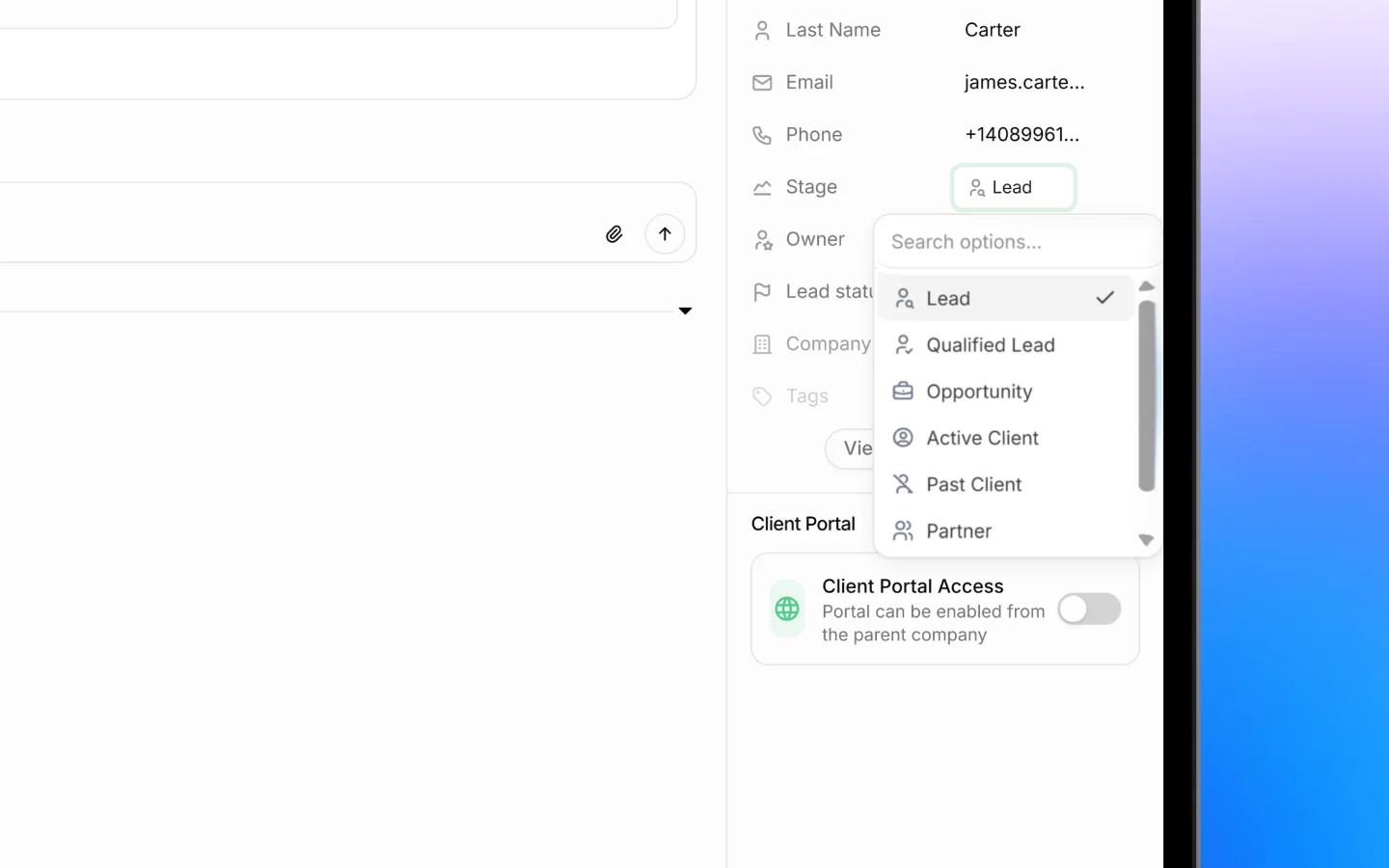
Like companies, each contact has a stage showing where they stand:
* **Lead** is a new prospect
* **Qualified Lead** is a prospect who has been vetted
* **Opportunity** is an active opportunity
* **Active Client** is a current client
Change a stage by clicking the Stage cell in the list, or from within the contact record.
***
## Linking a contact to a company
Set the **Company** field when adding or editing a contact to link them to the business they belong to. A contact belongs to one company, while a company can have many contacts. See [Linking contacts to a company](https://docs.heffl.com/linking-contacts-to-a-company) for the full process.
***
## Contact stages
Like companies, each contact has a stage showing where they stand:
* **Lead** is a new prospect
* **Qualified Lead** is a prospect who has been vetted
* **Opportunity** is an active opportunity
* **Active Client** is a current client
Change a stage by clicking the Stage cell in the list, or from within the contact record.
 ***
## Viewing and organizing contacts
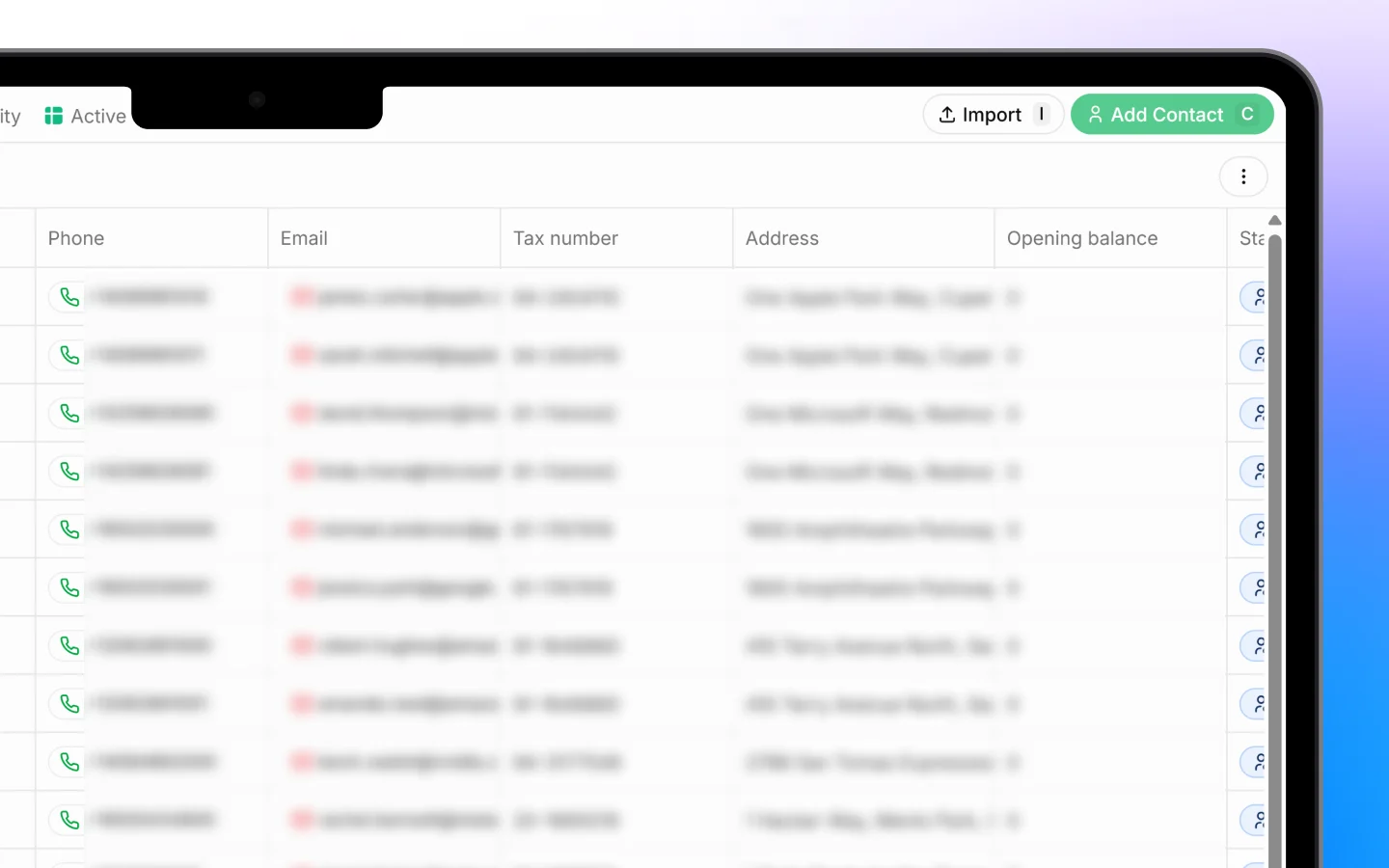
The Contacts page opens in a list, one contact per row, showing columns such as #, Name, Phone, Email, Tax number, Address, Opening balance, Stage, Owner, Tags, and First created. Your total count shows at the bottom (for example, "129 contacts").
### **Saved views (tabs)** Across the top are saved views that filter the list:
* **All** shows every contact
* **Leads** shows contacts at the Lead stage
* **Opportunity** shows active opportunities
* **Active clients** shows current clients
Click the **+** next to the tabs to create your own saved view.
### **Sort and filter**
* **Sort** orders contacts by created date and other fields
* **Filters** narrows the list by your chosen criteria
* The **search** icon finds a specific contact by name
***
## Editing a contact
Click any contact row to open its full record, where you can update details, see the linked company, and view activity.
You can also edit some fields directly from the list:
* **Stage** by clicking the stage cell
* **Tags** by clicking the **+** in the Tags column
* Contact details by clicking the relevant cell
Changes save automatically.
***
## Importing contacts
If you have contacts in a spreadsheet, click **Import** to add them in bulk. The flow has three steps: upload, select header, and map columns.
The expected columns include First Name (required), Last Name, Email, Phone, Job Title, Salutation, Company Name, Tax Number, Opening Balance, the Billing Address fields, and Tag. Click **Download Template** to format your file correctly before uploading. The process is the same as the lead import, covered in [Importing leads from a file](https://docs.heffl.com/importing-leads-from-a-file-upload-select-header-map-columns).
***
## What to do next
1. [Link contacts to companies](https://docs.heffl.com/linking-contacts-to-a-company) to keep your data connected
2. Create [deals](https://docs.heffl.com/adding-and-managing-deals) tied to a contact
3. Send a [quotation](https://docs.heffl.com/creating-and-sending-quotations) to a contact
***
## Viewing and organizing contacts
The Contacts page opens in a list, one contact per row, showing columns such as #, Name, Phone, Email, Tax number, Address, Opening balance, Stage, Owner, Tags, and First created. Your total count shows at the bottom (for example, "129 contacts").
### **Saved views (tabs)** Across the top are saved views that filter the list:
* **All** shows every contact
* **Leads** shows contacts at the Lead stage
* **Opportunity** shows active opportunities
* **Active clients** shows current clients
Click the **+** next to the tabs to create your own saved view.
### **Sort and filter**
* **Sort** orders contacts by created date and other fields
* **Filters** narrows the list by your chosen criteria
* The **search** icon finds a specific contact by name
***
## Editing a contact
Click any contact row to open its full record, where you can update details, see the linked company, and view activity.
You can also edit some fields directly from the list:
* **Stage** by clicking the stage cell
* **Tags** by clicking the **+** in the Tags column
* Contact details by clicking the relevant cell
Changes save automatically.
***
## Importing contacts
If you have contacts in a spreadsheet, click **Import** to add them in bulk. The flow has three steps: upload, select header, and map columns.
The expected columns include First Name (required), Last Name, Email, Phone, Job Title, Salutation, Company Name, Tax Number, Opening Balance, the Billing Address fields, and Tag. Click **Download Template** to format your file correctly before uploading. The process is the same as the lead import, covered in [Importing leads from a file](https://docs.heffl.com/importing-leads-from-a-file-upload-select-header-map-columns).
***
## What to do next
1. [Link contacts to companies](https://docs.heffl.com/linking-contacts-to-a-company) to keep your data connected
2. Create [deals](https://docs.heffl.com/adding-and-managing-deals) tied to a contact
3. Send a [quotation](https://docs.heffl.com/creating-and-sending-quotations) to a contact