> ## Documentation Index
> Fetch the complete documentation index at: https://docs.heffl.com/llms.txt
> Use this file to discover all available pages before exploring further.
# Adding and managing companies
Companies are the businesses you work with. In Heffl, a company moves through stages from Lead to Active Client, so the same record covers a prospect and a paying client at different points. This guide covers adding, organizing, and managing companies.
***
## Adding a company
1. Go to **Companies** in the sidebar
2. Click **Add Company** in the top right (or press **C**)
3. Enter the **Company name**
4. Fill in the other details as needed (all optional except the name):
* **Website**
* **Owner**, the team member responsible
* **Primary Contact**, the main person you deal with
* **Stage** (Lead, Opportunity, Active Client, Past Client)
* **Tax number** and **Opening balance**
* **Preferred currency**
* **Tags** and **Source**
5. Click **Add Company** (or press **Ctrl + Enter**)
The form also has tabs for **Other details**, **Billing Address**, and **Field service** to capture more information when you need it.
**Customizing the form** Click **Customize** at the top of the Add Company panel to control which fields appear. This opens the custom fields settings, where you manage fields for companies and other record types. See Creating and managing custom fields.
 ***
## Company stages
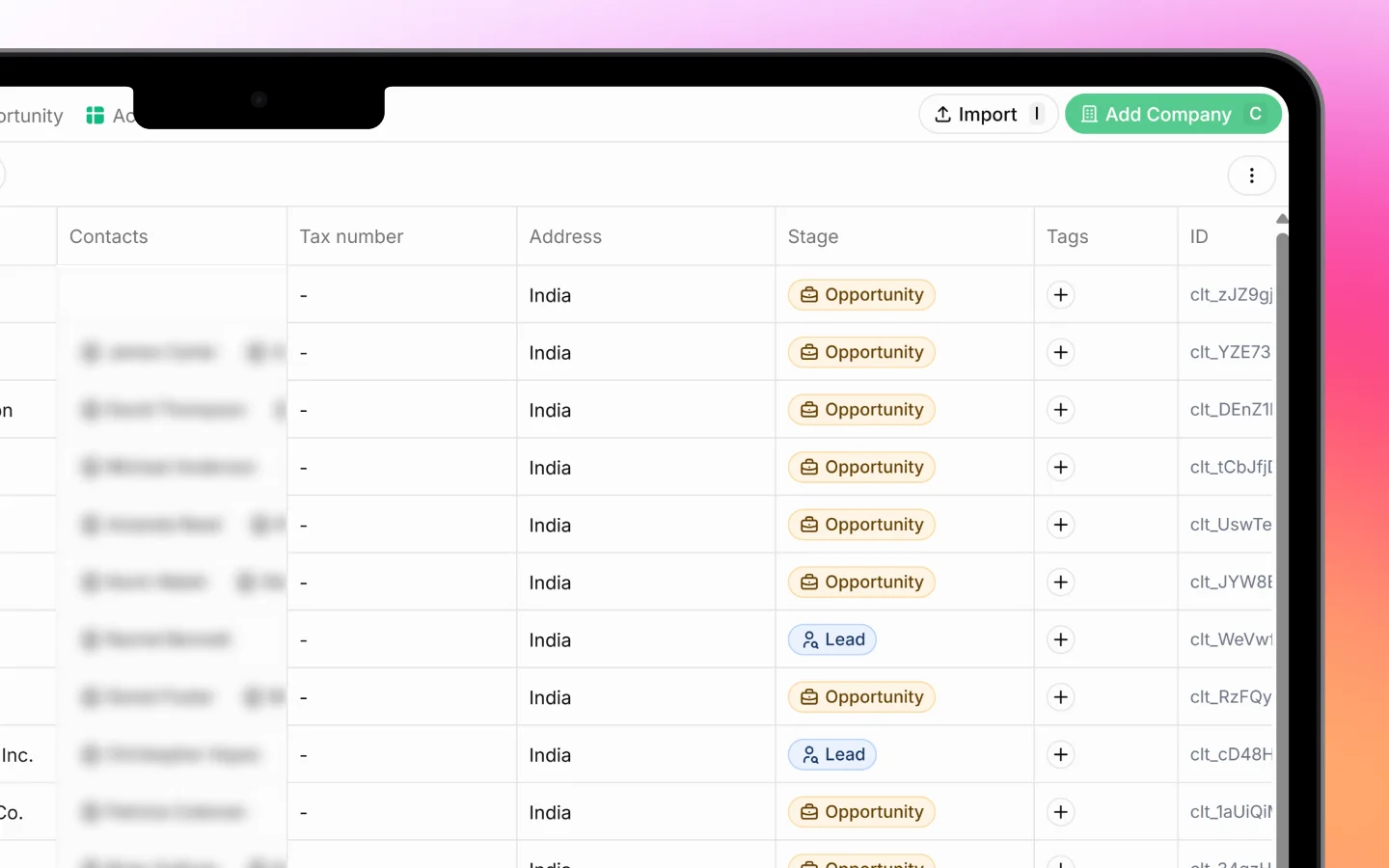
Each company has a stage showing where it stands in your relationship:
* **Lead** is a prospect you have not yet won
* **Opportunity** is an active sales opportunity
* **Active Client** is a current paying client
* **Past Client** is a former client
Change a stage by clicking the Stage cell in the list, or from within the company record. Stages let you treat your whole client base and prospect list as one connected set of records.
***
## Viewing and organizing companies
The Companies page opens in a list, one company per row, showing columns such as #, Name, Contacts, Tax number, Address, Opening balance, Stage, Owner, Tags, and First created. Your total count shows at the bottom (for example, "89 companies").
### **Saved views (tabs)** Across the top are saved views that filter the list for you:
* **All** shows every company
* **Leads** shows companies at the Lead stage
* **Opportunity** shows active opportunities
* **Active clients** shows current clients
Click the **+** next to the tabs to create your own saved view.
### **Sort and filter**
* **Sort** orders companies by created date and other fields
* **Filters** narrows the list by your chosen criteria
* The **search** icon finds a specific company by name
***
## Editing a company
Click any company row to open its full record, where you can update details, view linked contacts, deals, and quotes, and log activity.
You can also edit some fields directly from the list:
* **Stage** by clicking the stage cell
* **Tags** by clicking the **+** in the Tags column
* Contact and other details by clicking the relevant cell
Changes save automatically.
***
## Linking contacts to a company
A company can hold several contacts, the individual people you deal with there. Set a **Primary Contact** when adding the company, and link more contacts from the company record. See [Linking contacts to a company](https://docs.heffl.com/linking-contacts-to-a-company) for the full process.
***
## Importing companies
If you have companies in a spreadsheet, click **Import** to add them in bulk. The flow works like the lead import: upload your file, select the header row, and map your columns to Heffl fields. See [Importing leads from a file](https://docs.heffl.com/importing-leads-from-a-file-upload-select-header-map-columns) for the step-by-step process, which is the same here.
***
## Company stages
Each company has a stage showing where it stands in your relationship:
* **Lead** is a prospect you have not yet won
* **Opportunity** is an active sales opportunity
* **Active Client** is a current paying client
* **Past Client** is a former client
Change a stage by clicking the Stage cell in the list, or from within the company record. Stages let you treat your whole client base and prospect list as one connected set of records.
***
## Viewing and organizing companies
The Companies page opens in a list, one company per row, showing columns such as #, Name, Contacts, Tax number, Address, Opening balance, Stage, Owner, Tags, and First created. Your total count shows at the bottom (for example, "89 companies").
### **Saved views (tabs)** Across the top are saved views that filter the list for you:
* **All** shows every company
* **Leads** shows companies at the Lead stage
* **Opportunity** shows active opportunities
* **Active clients** shows current clients
Click the **+** next to the tabs to create your own saved view.
### **Sort and filter**
* **Sort** orders companies by created date and other fields
* **Filters** narrows the list by your chosen criteria
* The **search** icon finds a specific company by name
***
## Editing a company
Click any company row to open its full record, where you can update details, view linked contacts, deals, and quotes, and log activity.
You can also edit some fields directly from the list:
* **Stage** by clicking the stage cell
* **Tags** by clicking the **+** in the Tags column
* Contact and other details by clicking the relevant cell
Changes save automatically.
***
## Linking contacts to a company
A company can hold several contacts, the individual people you deal with there. Set a **Primary Contact** when adding the company, and link more contacts from the company record. See [Linking contacts to a company](https://docs.heffl.com/linking-contacts-to-a-company) for the full process.
***
## Importing companies
If you have companies in a spreadsheet, click **Import** to add them in bulk. The flow works like the lead import: upload your file, select the header row, and map your columns to Heffl fields. See [Importing leads from a file](https://docs.heffl.com/importing-leads-from-a-file-upload-select-header-map-columns) for the step-by-step process, which is the same here.
 ***
## What to do next
1. Link contacts to your companies
2. Move companies through their stages as relationships develop
3. Create deals and quotations tied to a company
***
## What to do next
1. Link contacts to your companies
2. Move companies through their stages as relationships develop
3. Create deals and quotations tied to a company