> ## Documentation Index
> Fetch the complete documentation index at: https://docs.heffl.com/llms.txt
> Use this file to discover all available pages before exploring further.
# Account settings
Account settings are your personal settings, the ones that affect only you, not the whole workspace. This guide covers your profile, preferences, and password. You will find these under **Settings**, in the **Personal** section.
***
## Finding your settings
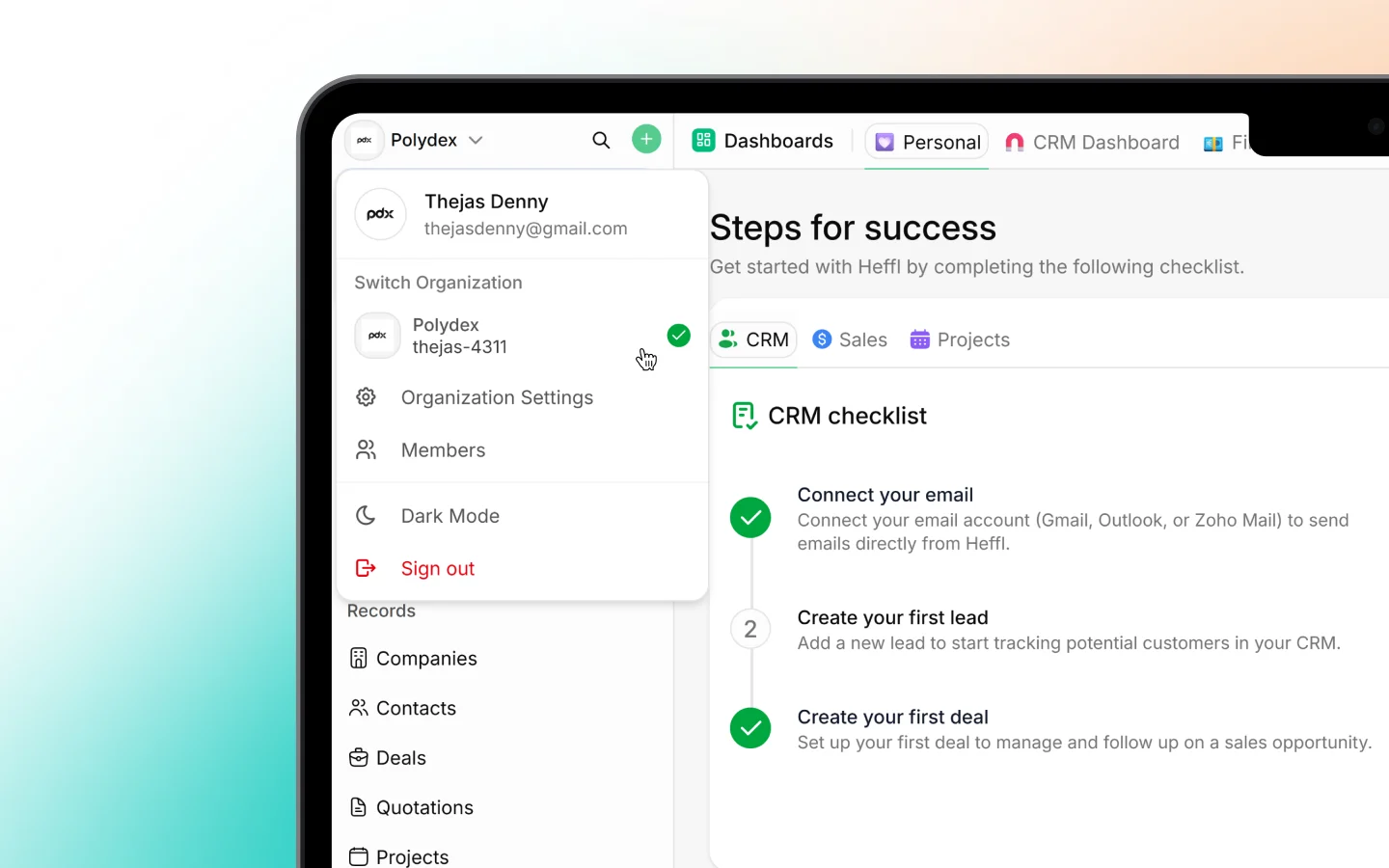
Open **Settings** from the sidebar. The menu is split into two groups:
* **Personal**: settings that affect only you (Account Settings and Notifications)
* **Organization**: settings that affect the whole workspace (covered in [Workspace and organization settings](https://docs.heffl.com/workspace-and-organization-settings))
This page covers the Personal > **Account Settings** screen. Notifications has its own page; see [Notification settings](https://docs.heffl.com/untitled-page).
 ***
## Your profile
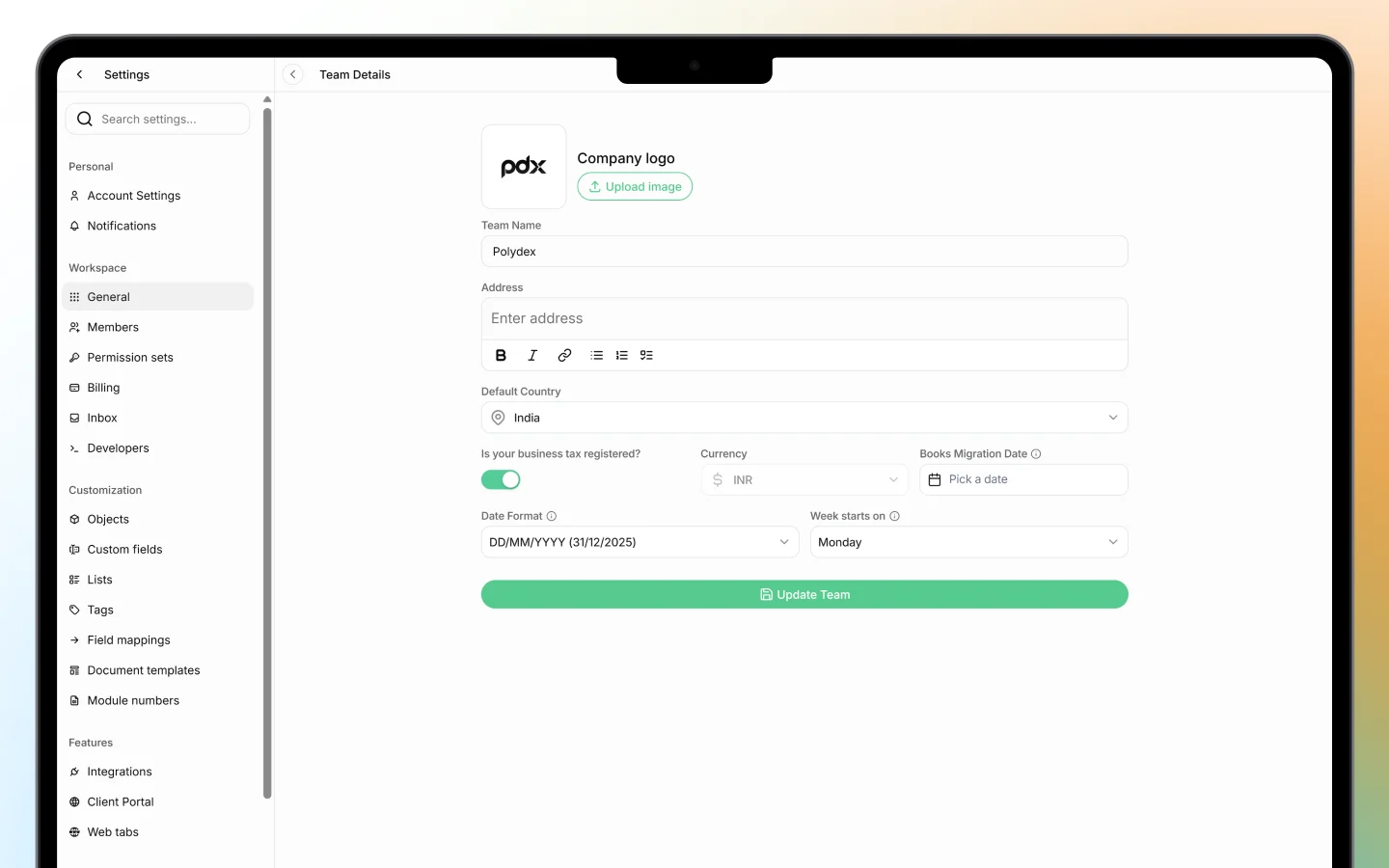
Under **Account Settings**, update the details that identify you across the workspace:
* **Name**, shown on records, activity, and assignments
* **Email**, your login and where notifications are sent
* **Profile photo**, the avatar teammates see next to your actions
* **Phone**, your contact number
Keeping your name and photo current helps teammates recognize your activity, since your avatar appears on the records, tasks, and comments you create.
***
## Your profile
Under **Account Settings**, update the details that identify you across the workspace:
* **Name**, shown on records, activity, and assignments
* **Email**, your login and where notifications are sent
* **Profile photo**, the avatar teammates see next to your actions
* **Phone**, your contact number
Keeping your name and photo current helps teammates recognize your activity, since your avatar appears on the records, tasks, and comments you create.
 ***
## Language and timezone
Set your regional preferences so dates, times, and the interface suit you:
* **Timezone**, ensures meetings, due dates, and timestamps display in your local time. Heffl detects this at signup, but you can change it here.
* **Language**, the interface language, if multiple are available
Your timezone matters most, since it affects how every date and time in Heffl appears to you, including follow-up dates and scheduled jobs.
***
## Changing your password
To update your password:
1. Open **Account Settings**
2. Find the password or security option
3. Enter your current password, then your new one
4. Save
Choose a strong password of at least 8 characters. If you log in with a one-time code (OTP) instead of a password, you may not need to set one. See [How to sign up and log in](https://docs.heffl.com/getting-started/how-to-sign-up-and-log-in).
***
### Personal preferences
Account Settings also holds preferences that shape your own experience of Heffl, such as display options and defaults. These apply only to your account and do not change anything for your teammates.
***
### Personal versus organization settings
It helps to know the difference:
* **Personal settings** (Account Settings, Notifications) affect only you
* **Organization settings** (Organization, CRM, Sales, Integrations, and the rest) affect the whole workspace and usually require admin or owner access
So changing your timezone or photo here is yours alone, while workspace-wide changes live under the Organization group. See [Workspace and organization settings](https://docs.heffl.com/workspace-and-organization-settings).
***
### What to do next
1. Set your [notification preferences](https://docs.heffl.com/untitled-page)
2. Review [workspace and organization settings](https://docs.heffl.com/workspace-and-organization-settings) if you are an admin
3. Confirm your timezone so dates and schedules display correctly
***
## Language and timezone
Set your regional preferences so dates, times, and the interface suit you:
* **Timezone**, ensures meetings, due dates, and timestamps display in your local time. Heffl detects this at signup, but you can change it here.
* **Language**, the interface language, if multiple are available
Your timezone matters most, since it affects how every date and time in Heffl appears to you, including follow-up dates and scheduled jobs.
***
## Changing your password
To update your password:
1. Open **Account Settings**
2. Find the password or security option
3. Enter your current password, then your new one
4. Save
Choose a strong password of at least 8 characters. If you log in with a one-time code (OTP) instead of a password, you may not need to set one. See [How to sign up and log in](https://docs.heffl.com/getting-started/how-to-sign-up-and-log-in).
***
### Personal preferences
Account Settings also holds preferences that shape your own experience of Heffl, such as display options and defaults. These apply only to your account and do not change anything for your teammates.
***
### Personal versus organization settings
It helps to know the difference:
* **Personal settings** (Account Settings, Notifications) affect only you
* **Organization settings** (Organization, CRM, Sales, Integrations, and the rest) affect the whole workspace and usually require admin or owner access
So changing your timezone or photo here is yours alone, while workspace-wide changes live under the Organization group. See [Workspace and organization settings](https://docs.heffl.com/workspace-and-organization-settings).
***
### What to do next
1. Set your [notification preferences](https://docs.heffl.com/untitled-page)
2. Review [workspace and organization settings](https://docs.heffl.com/workspace-and-organization-settings) if you are an admin
3. Confirm your timezone so dates and schedules display correctly